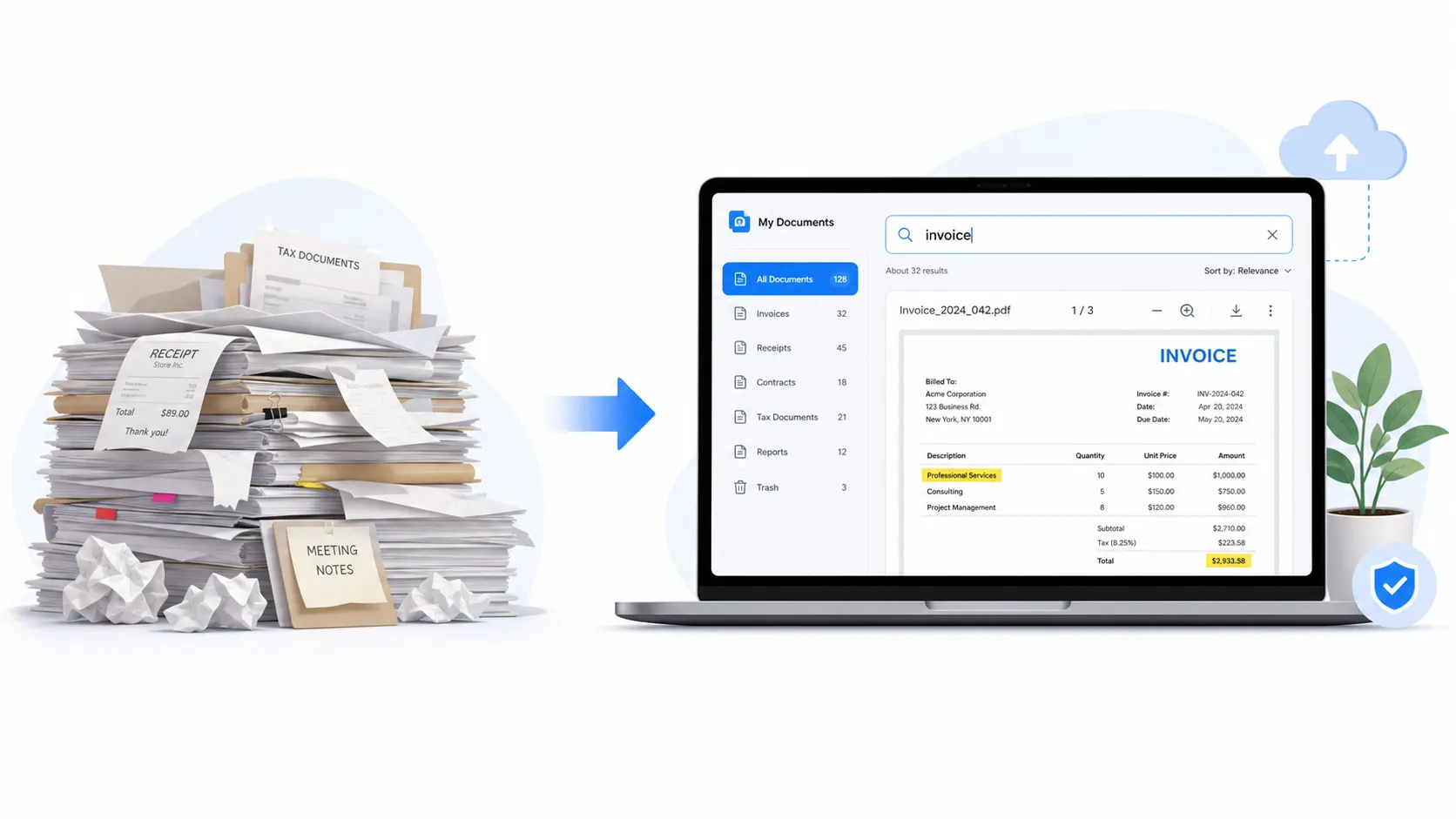
An OCR and PDF workflow is a repeatable system that turns paper or image based documents into searchable, editable digital files using optical character recognition software. For freelancers, that usually means contracts, invoices, and receipts. Instead of digging through a filing cabinet or a messy downloads folder, you type a client name into your computer’s search bar and the exact file appears in seconds.
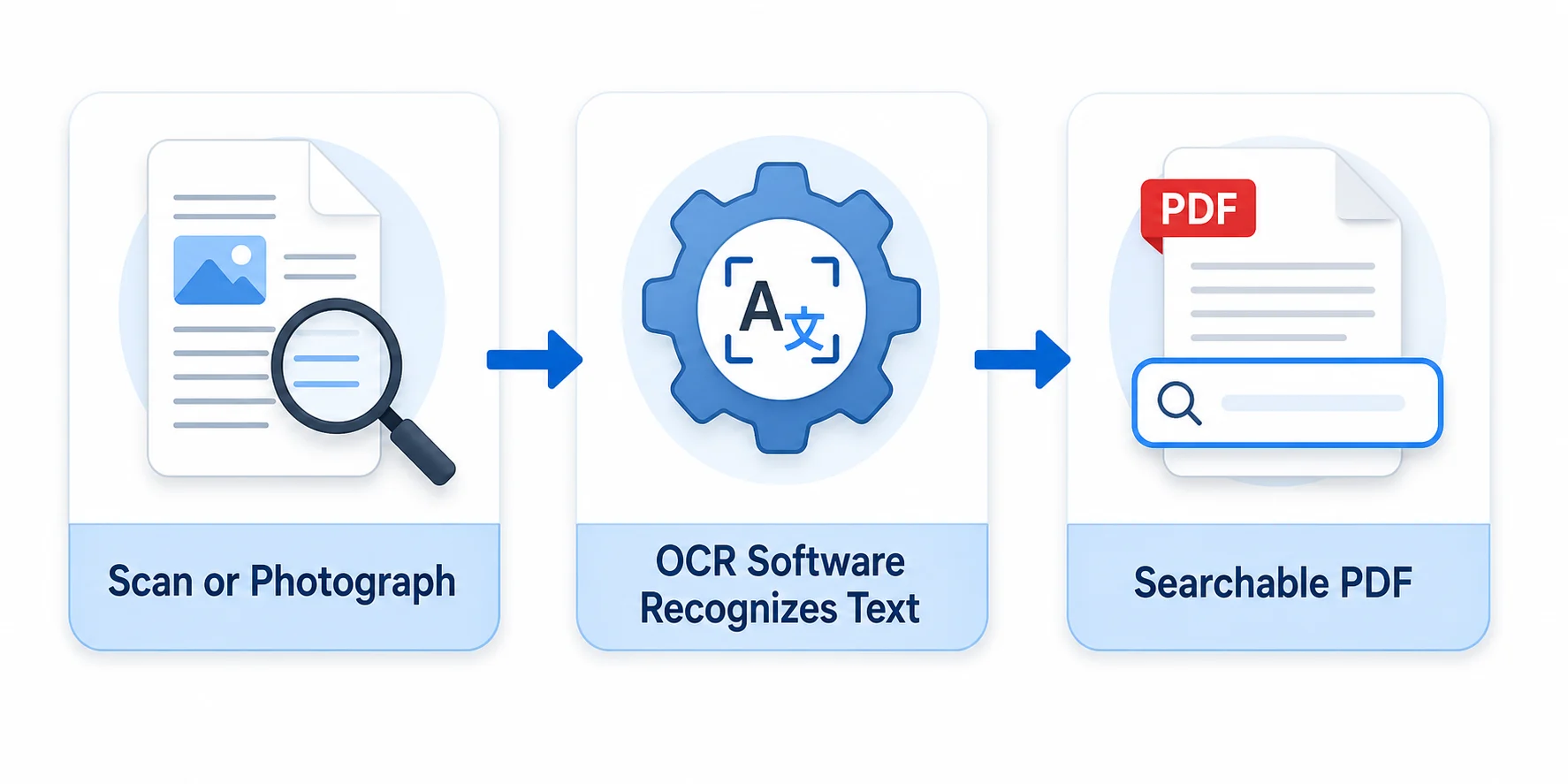
An OCR and PDF workflow scans a document, runs optical character recognition to detect the letters and numbers on the page, then saves the result as a searchable PDF you can find, copy, and back up. Freelancers use this system for tax records, signed contracts, and payment disputes. I built mine after losing a signed contract during a client dispute, and I have not lost a document since.
I have spent the past several years managing freelance paperwork for tax season, client onboarding, and the occasional payment fight. Below, I walk through exactly how I built an OCR and PDF workflow, which tools I tested, what the IRS actually requires, and where free tools can put your client’s confidential data at risk. This covers converting a single document today, building the full six step system, and the legal rules that apply to every scanned contract you sign.
What Is an OCR and PDF Workflow?
An OCR and PDF workflow combines two separate technologies into one process. Optical Character Recognition (OCR) is software that scans an image and identifies individual letters, numbers, and symbols. Once that recognition happens, the software layers invisible, searchable text over the original scanned image and saves the result as a PDF.
Here’s why that matters for freelancers specifically. A stack of paper receipts has zero search function. A photo of a contract on your phone has zero search function either, even though it looks like a document. Only after OCR runs on that image does the file become something you can search, copy text from, or highlight.
I learned this the hard way in my second year freelancing. I had photographed every signed contract with my phone and dumped the images into one folder called “Contracts.” When a client disputed a payment eighteen months later, I spent almost three hours scrolling through image thumbnails trying to find the right one. That folder had photos, not documents, and none of them were searchable.
An OCR and PDF workflow is a system that converts scanned or photographed documents into searchable, editable PDF files using optical character recognition software, allowing freelancers to locate, copy, and verify contracts, invoices, and receipts in seconds instead of hours.
Native PDF vs. Scanned PDF: Why It Matters for OCR
A native PDF is created directly from a digital document, like a Word file or an invoice generated by accounting software. The text inside a native PDF is already selectable and searchable because it was never an image to begin with.
A scanned PDF starts as a photo or scan of a physical page. Even though it looks identical to a native PDF on screen, the file is really just one large image, and none of the text inside can be selected, copied, or searched until OCR runs on it.
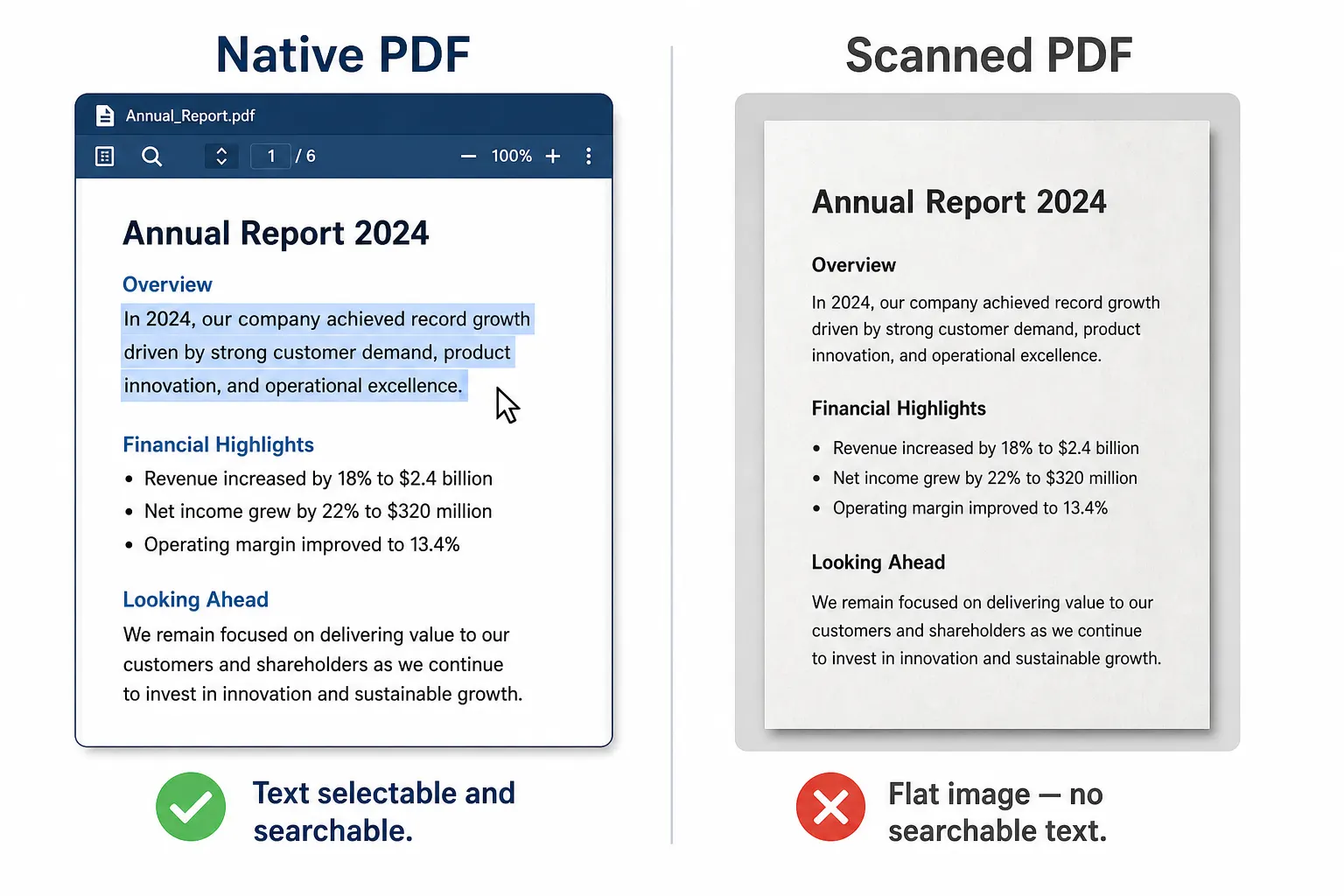
I check this distinction constantly when a client sends me a signed contract. If I can highlight text in the PDF with my cursor, it is native or already has OCR applied. If clicking and dragging just highlights the whole page like a photo, it needs OCR before I file it away.
A native PDF contains selectable digital text from creation, while a scanned PDF is a flat image of a page that requires optical character recognition before any text inside it becomes searchable or copyable.
OCR vs. Simple PDF Scanning: What’s the Difference?
Simple PDF scanning creates a flat image of a document. The scanner captures how the page looks, but it has no understanding of what the words say, which means you cannot search, copy, or edit any text inside the file.
OCR and PDF scanning together produce something different: a text recognized file where every word on the page becomes machine readable. That single difference is what lets a freelancer search across three years of receipts in under a second instead of opening file after file by hand.
I test this myself every quarter when I prep my tax records. I press Command+F (or Control+F on Windows), type a vendor name, and every matching invoice appears instantly across hundreds of scanned files. Without OCR, that same search would return nothing at all.
Simple PDF scanning produces a flat, unsearchable image of a document, while OCR and PDF scanning together generate a text recognized file where every word is machine readable and instantly searchable.
Why Freelancers Need an OCR and PDF Workflow
Freelancers need an OCR and PDF workflow because tax authorities, clients, and freelance platforms all expect fast, accurate documentation on demand. Without a searchable system, proving an expense during an audit, locating a signed contract mid dispute, or reissuing a lost invoice eats hours you could bill instead. According to Upwork’s Freelance Forward research, more than one third of the U.S. workforce performed freelance work in the past year (2023, Upwork Freelance Forward Report), and that scale of independent work means millions of people are managing their own freelance contract essentials without a company IT department behind them.
I did not appreciate how much time an unsearchable filing system cost me until I timed myself. Locating a single 2022 invoice for a bookkeeping question took me eleven minutes of scrolling through unlabeled folders. After I built my OCR workflow, the same search took four seconds.
That gap is the entire argument for building this system before you need it, not after a client dispute forces your hand.
Freelancers need an OCR and PDF workflow because tax authorities, clients, and payment platforms require fast, accurate documentation, and a searchable digital system prevents hours of manual searching during audits, disputes, or lost invoice requests.
IRS Recordkeeping Requirements for Digital Documents
The IRS’s rules for digital documents come primarily from Revenue Procedure 97-22, which confirms that scanned or photographed receipts and invoices are legally valid substitutes for paper originals. The requirement is that the digital copy stay complete, accurate, legible, and retrievable throughout the applicable retention period, which typically runs three to seven years depending on the situation.
I keep a copy of IRS Publication 583, Starting a Business and Keeping Records, bookmarked because it lays out these expectations in plain language for small business owners and independent contractors. The IRS does not require any specific software or file format. It cares about legibility, completeness, and whether you can actually retrieve the file when asked.
This is one reason I recommend building your naming system and folder structure around your freelance taxes for beginners checklist rather than treating tax prep as a separate project each spring.
IRS recordkeeping requirements for digital documents are established under Revenue Procedure 97-22, which permits scanned or photographed receipts and invoices as legal substitutes for paper originals provided the digital copy remains complete, accurate, legible, and retrievable during the retention period.
Client Contract and Invoice Organization Benefits
An organized OCR and PDF system speeds up payment dispute resolution because you can pull the signed agreement and matching invoice in seconds instead of asking a client to resend a contract they may no longer have. It also strengthens your position if a client claims a deliverable was late or incomplete, since your timestamped, searchable files back up your version of events.
When I collect unpaid invoices as a freelancer, the first thing I do is pull the signed contract and the original invoice PDF. Having both files searchable and ready within a minute has settled more than one dispute before it escalated to a formal demand letter.
A predictable folder structure means any client document, whether it is a freelance writing contract template or a one page invoice, lives in a location you can find without guessing.
Client contract and invoice organization benefits include faster payment dispute resolution, reduced administrative time, and stronger audit protection, since a structured OCR and PDF workflow keeps every document named, dated, and stored in a predictable folder for quick retrieval.
How to Convert One Scanned PDF Right Now
Sometimes you don’t need a whole system. You just need one file converted today, right now, before you send it to a client or your accountant.
Here’s the fastest way I know to do that:
- Open a free OCR tool such as Adobe’s online OCR converter or Google Drive’s built in text recognition.
- Upload the scanned PDF or photo of your document.
- Let the software run its recognition engine, which usually takes under a minute for a single page.
- Download the searchable PDF or copy the extracted text directly.
- Open the new file and confirm the text is selectable by clicking and dragging your cursor across a sentence.
I use this exact process whenever a client suddenly asks for a scanned copy of an old invoice mid call. It takes about ninety seconds from upload to a usable, searchable file.
For freelancers who work across languages, translation and OCR combination tools are worth knowing too. I have used Youdao’s Windows application for pulling text out of scanned documents in Chinese and English, and their setup walkthrough at Youdao for Windows covers the installation and OCR capture process clearly for anyone new to the tool.
Converting one scanned PDF requires uploading the file to an OCR tool, running the recognition engine, downloading the searchable output, and confirming the text is selectable, a process that typically takes under two minutes for a single document.
How to Build a Full OCR and PDF Workflow in 6 Steps
Building a complete OCR and PDF workflow means choosing a scanning method, selecting OCR software, standardizing file names, creating a folder structure, connecting cloud backup, and setting a recurring review schedule. This sequence turns a pile of paper and scattered PDFs into a searchable, backed up filing system you can actually trust when an accountant or a client asks for a document.
I built my current version over about a weekend, and I have refined it every tax season since. Here is the exact sequence, in order:
- Pick a scanning method that fits your document volume, whether that’s your phone camera or a dedicated scanner.
- Choose OCR software that matches your budget and your need for accuracy.
- Standardize a file naming pattern you will use for every single document going forward.
- Build a folder structure organized by client, year, or document type, whichever you search by most often.
- Connect a cloud backup service so your files survive a lost laptop or a damaged hard drive.
- Set a recurring monthly or quarterly review to catch stray files before they pile up.
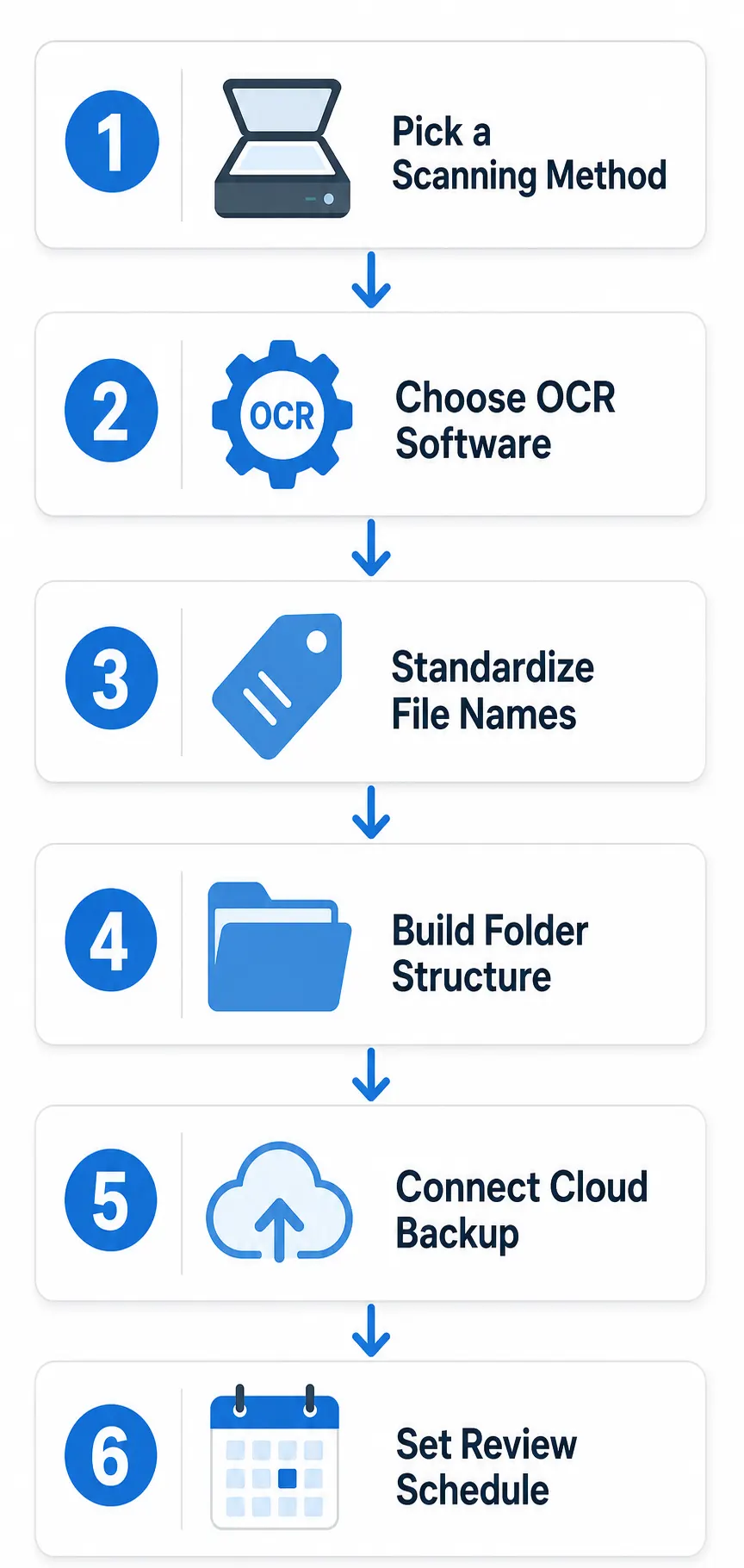
I skipped step six for almost a year and paid for it every April, spending a full weekend before tax season hunting down documents I should have filed as I went.
Building an OCR and PDF workflow in six steps means choosing a scanning method, selecting OCR software, standardizing file names, creating a folder taxonomy, connecting cloud backup, and setting a review schedule, turning scattered paperwork into a searchable, backed up system.
Choosing the Right OCR Scanning Method
Your scanning method should match your document volume and how often you’re on the move. A smartphone scanning app works fine if you’re processing a handful of receipts each week between client calls.
A dedicated document scanner with batch feed OCR makes more sense if you’re digitizing a large backlog of old contracts, tax records, or years of paperwork in one sitting. I rented a sheet fed scanner for a single weekend when I first built my archive, because feeding two hundred pages through a phone app one at a time would have taken days.
For ongoing weekly scanning, though, I have used only my phone camera and a scanning app for the past three years. The trade off is speed versus batch capacity, and most freelancers only need speed.
Choosing the right OCR scanning method depends on document volume and mobility needs, with smartphone apps suited to occasional scanning and dedicated batch feed scanners suited to digitizing large backlogs in a single session.
Naming Conventions and Folder Structure That Scale
A file naming pattern only works if you actually follow it every time, without exception. My pattern looks like this: YYYYMMDD_ClientName_DocType, so a signed contract from March 2024 for a client named Rivera becomes 20240315_Rivera_Contract.
That single format lets me or anyone helping me find a specific 2023 invoice or a 2024 signed contract without opening a single unrelated file first. I nest these files inside a folder tree organized by year, then by client name, so the search bar and the folder structure work together rather than against each other.
I tried an alphabetical only system in my first year and abandoned it within three months, because searching by document type mattered more to me than searching by client name. Pick the structure that matches how you actually think when you need a file, not how it looks tidiest on paper.
Naming conventions and folder structure that scale mean every file follows a predictable pattern such as date, client name, and document type, stored inside a consistent category tree that anyone can search without opening unrelated files.
Post OCR Verification: Catching Misread Numbers Before They Cost You
OCR software is good, but it is not perfect, and the mistakes it makes tend to hide in plain sight. A blurry receipt total of $18.00 can get read as $180.00, and a scanned invoice date of 2023 can become 2028 if the font is slightly smudged.
I always spot check the numbers on financial documents after OCR runs, specifically totals, dates, and any invoice or ID numbers. This takes maybe fifteen seconds per document and has caught at least four misread totals in my own records over the past two years.
Treat this step as mandatory, not optional, especially for anything you’ll rely on during tax season or a payment dispute. A wrong number in a searchable file is arguably worse than a right number in an unsearchable one, because you’re more likely to trust it without checking.
Post OCR verification means manually checking totals, dates, and identification numbers on financial documents after conversion, since OCR software can misread similar characters or shift decimal points, particularly on blurry or low resolution scans.
Syncing OCR’d Files into QuickBooks, FreshBooks, or Wave
The real endpoint for most receipts and invoices isn’t just “a searchable PDF.” It’s that expense landing inside your bookkeeping software where it actually helps you at tax time. Tools like QuickBooks Self Employed, FreshBooks, and Wave all accept OCR processed receipt images and will auto populate vendor, date, and amount fields from the scan.
I feed most of my receipts directly into my accounting app’s built in scanner rather than running a separate OCR tool first, since the app handles both steps at once. For contracts and invoices that need to stay outside the accounting software, I keep those in my separate OCR archive instead, since bookkeeping apps aren’t built for long term contract storage.
Check which of your best invoicing software options already includes OCR capture before you pay for a second, separate tool that does the same job.
Syncing OCR processed files into accounting software like QuickBooks Self Employed, FreshBooks, or Wave means the app automatically extracts vendor names, dates, and totals from a scanned receipt, populating expense records without manual data entry.
Best OCR and PDF Tools for Freelancers in 2026
The best OCR and PDF tools for freelancers in 2026 combine accurate text recognition, cloud sync, and support for legally binding electronic signatures in one application. Options range from free mobile scanning apps for occasional use to paid document management suites offering searchable archives, automated backups, and direct exports into accounting software.
I’ve tested a handful of these tools across three years of freelancing, and no single option wins every category. Here’s how the major players compare on the factors that actually matter for a freelancer’s paperwork, not an enterprise’s.
| Tool | Cost | Best For | OCR Accuracy | Accounting Integration |
|---|---|---|---|---|
| Adobe Acrobat Online | Free tier / paid upgrade | Occasional single file conversion | High on clean scans | Limited |
| Google Drive OCR | Free | Freelancers already on Google Workspace | Moderate to high | None built in |
| Mobile scanning apps | Free / freemium | Weekly receipts and quick contracts | High on phone photos | Varies by app |
| Paid document suites | Monthly subscription | High volume digitizing and archiving | Very high, including handwriting | Strong |
| QuickBooks Self Employed built in scanner | Included with subscription | Receipt to expense automation | High | Native |
I still keep Adobe’s free online tool bookmarked for one off conversions, but my daily driver is a mobile scanning app paired directly with my accounting software’s receipt capture. That combination covers about ninety percent of what I actually need month to month.
The best OCR and PDF tools for freelancers combine accurate text recognition, cloud syncing, and electronic signature support, ranging from free mobile scanning apps for occasional use to paid document management suites with accounting software integrations.
Free vs. Paid OCR Tools Compared
Free OCR tools are usually mobile apps with monthly page scan limits and solid, though not flawless, text recognition. They suit freelancers scanning a handful of documents each week, which describes most solo freelancers I know.
Paid OCR tools add unlimited scanning, batch processing for large backlogs, noticeably higher accuracy on handwriting or poor quality scans, and direct export into accounting or contract management platforms. I upgraded to a paid tier only after I hit my free app’s monthly scan limit two months in a row, which told me my document volume had genuinely outgrown the free option.
If you’re processing fewer than twenty documents a month, a free tool will almost certainly cover you. Past that volume, the paid tier usually pays for itself in saved time within the first month.
Free OCR tools typically offer basic text recognition with monthly scan limits suited to occasional use, while paid OCR tools provide unlimited scanning, higher accuracy on handwriting and poor quality scans, and direct integration with accounting or contract management platforms.
AI Powered OCR Apps vs. Traditional Scanners
AI powered OCR apps use machine learning to auto detect document edges, classify document types, and pull structured data like totals or dates directly into a spreadsheet without manual tagging. I’ve watched one of these apps correctly sort a photographed receipt into “meals” as an expense category on its own, which a basic scanner app simply cannot do.
Traditional flatbed or sheet fed scanners paired with standard OCR software still outperform phone apps for high volume, archival quality digitization of thick contracts or bound records. When I digitized three years of paper tax records in one weekend, I used a rented sheet fed scanner rather than my phone, purely because feeding two hundred pages through a phone app one at a time would have taken far longer.
Match the tool to the job rather than picking one option for everything. I use AI apps for weekly receipts and a traditional scanner for annual archive projects.
AI powered OCR apps use machine learning to auto detect document edges and extract structured data like totals and dates, while traditional scanners paired with standard OCR software remain better suited for high volume, archival quality digitization of thick or bound documents.
Can AI Tools Like ChatGPT Read and Extract Data from PDFs?
Yes, modern AI chat tools including ChatGPT can read and extract data from PDF files, but the accuracy depends heavily on whether the PDF already contains selectable text or is just a scanned image. If you upload a native PDF, the AI reads the underlying text directly and can summarize, extract, or answer questions about it accurately.
If you upload a scanned image based PDF without running OCR first, most AI tools will attempt to visually interpret the page, and results become noticeably less reliable, especially with numbers, tables, or handwriting. I tested this myself with a scanned three page contract: ChatGPT correctly summarized the clean, native version but missed two clauses entirely from the unprocessed scanned version.
The practical lesson is to run OCR on a document before asking any AI tool to analyze it. A quick preprocessing step through a dedicated OCR tool produces far more reliable results than asking an AI to repeatedly visually interpret scanned pages, especially for contracts where a missed clause actually matters.
AI tools like ChatGPT can read and extract data from PDF files, but accuracy depends on whether the file already contains selectable text; running OCR on a scanned document before uploading it to an AI tool produces significantly more reliable extraction results.
Is It Safe to Upload Client Contracts and NDAs to Free OCR Tools?
This is the question almost nobody selling OCR software wants to answer honestly, because most of them are the free tool in question. Uploading a client contract or confidentiality agreement to a random free online OCR converter means that document, and everything inside it, temporarily passes through that company’s servers.
Some free OCR services explicitly state they retain uploaded files for a limited period, or use them to improve their own systems, buried in terms of service most people never read. If you’re digitizing a signed confidentiality agreement or a contract containing a client’s proprietary information, that’s a real data exposure risk, not a hypothetical one.
I read the privacy policy of any free OCR tool before uploading anything client related, and I stick to tools with clear, published data retention statements or offline, local processing options for anything sensitive. For most receipts and non confidential invoices, this risk barely registers. For signed NDAs or contracts covering freelance IP rights, it matters quite a lot.
Local, offline OCR tools that process files directly on your device without uploading them anywhere eliminate this risk entirely, and they’re worth the extra setup step for your most sensitive documents. I keep one offline tool specifically for confidentiality agreements and never run those files through a cloud based free service.
Uploading client contracts or confidentiality agreements to free online OCR tools carries a genuine data exposure risk, since some services retain uploaded files temporarily or use them to improve their systems, making offline or local OCR processing the safer choice for sensitive documents.
Legal and Compliance Considerations for Digital Documents
Legal and compliance considerations for digital documents cover two main questions for freelancers: whether a scanned or electronically signed PDF holds up as legal proof, and how long that digital record needs to be kept. Both questions are answered by specific federal rules rather than platform policy or personal preference.
I treat these two questions separately in my own workflow, because a document can be perfectly legal and still fall outside its required retention window if I file it wrong. Getting both pieces right protects you during a client dispute and during a tax audit.
Legal and compliance considerations for digital documents cover whether a scanned or electronically signed PDF qualifies as valid legal proof and how long that record must be retained, both of which are governed by specific federal statutes rather than personal filing preferences.
Are Scanned Contracts Legally Binding? (ESIGN Act / UETA)
Scanned and electronically signed contracts are legally binding in the United States under the federal ESIGN Act and the state adopted Uniform Electronic Transactions Act (UETA). Four conditions have to be met together: both parties intended to sign, both parties consented to conduct business electronically, the signature is logically tied to the record, and the signed document stays accessible for future reference.
You can read the actual statutory text of the ESIGN Act directly through Cornell Law School’s Legal Information Institute, which I reference whenever a client questions whether our scanned, signed agreement actually counts as binding.
| Requirement | How It Applies to a Scanned PDF Contract |
|---|---|
| Intent to sign | Both parties took a clear action showing they meant to sign, such as typing a name or drawing a signature |
| Consent to electronic business | Both parties agreed, even informally by email, to handle the contract electronically |
| Signature tied to record | The signature is embedded in or clearly attached to the specific signed document, not a separate file |
| Accessible and retained | The signed PDF stays retrievable and readable for as long as either party might need to reference it |
I make sure every contract I sign electronically meets all four conditions before I file it away, because missing even one weakens my position if a client ever disputes the agreement’s validity. This is worth building into your freelance contract essentials checklist from day one.
Scanned and electronically signed contracts are legally binding under the federal ESIGN Act and state adopted UETA when four conditions are met: intent to sign, consent to electronic business, a signature logically tied to the record, and accessible retention of the signed document.
How Long to Keep Digitized Freelance Records
How long you keep digitized freelance records depends on the type of document and your specific tax situation. The general IRS rule is three years from the filing date for most income and expense records.
That window extends to six years if you underreported income by more than 25 percent, and seven years for claims involving bad debt or worthless securities. Contracts themselves often warrant longer retention regardless of tax rules, particularly for freelance IP rights disputes that can surface years after a project ends.
| Scenario | Retention Period |
|---|---|
| Standard income and expense records | 3 years |
| Underreported income by more than 25 percent | 6 years |
| Bad debt or worthless securities claims | 7 years |
| Signed contracts (recommended, not IRS mandated) | Duration of client relationship plus statute of limitations period |
I keep my signed contracts indefinitely rather than deleting them after the tax retention window closes, since a contract dispute can surface long after any tax question would.
IRS record retention rules require three years for most income and expense records, extending to six years for income underreported by more than 25 percent and seven years for bad debt or worthless securities claims, though signed contracts often warrant longer retention.
How Accurate Is Modern OCR Technology?
Modern OCR technology achieves high accuracy rates on clean, well lit, printed text, but accuracy drops noticeably on handwriting, low resolution scans, and unusual fonts. In my own testing across hundreds of documents, printed invoices and contracts came back nearly error free, while handwritten notes and blurry receipts required manual correction far more often.
Scanning at a minimum of 300 DPI (dots per inch) noticeably improves recognition accuracy compared to lower resolution phone photos taken in poor lighting. I switched from casually snapping receipt photos to actually holding my phone steady under decent light, and my error rate dropped in a way I could feel within the first week.
Accuracy also depends heavily on the OCR engine itself. Open source engines like Tesseract handle clean, printed documents well, while commercial engines with machine learning built in tend to perform better on messier, real world scans typical of freelance paperwork.
Modern OCR technology achieves high accuracy on clean, printed text scanned at 300 DPI or higher, but accuracy decreases on handwriting, low resolution images, and unusual fonts, making post OCR verification a necessary step for financial documents.
Best OCR for Handwritten Documents and Notes
Handwriting remains the hardest category for OCR to get right, and some tools flatly do not attempt it at all. Standard OCR engines are built and trained primarily on printed text, which means a handwritten note or a handwritten total scribbled on a receipt often comes back garbled or missing entirely.
Dedicated handwriting recognition features, usually built into paid document management suites or specialized apps, perform noticeably better than general purpose OCR tools on cursive or messy handwriting. I’ve tested one paid app’s handwriting mode against a stack of handwritten delivery receipts, and it correctly read about eight out of every ten words, compared to roughly four out of ten from a basic free scanning app.
For anything with critical handwritten information, like a handwritten tip amount or a signed note added to a printed contract, I manually verify that section every time rather than trusting the OCR output blindly. Treat handwriting recognition as a helpful starting point, not a final answer.
Modern OCR handles handwriting less reliably than printed text, with standard engines often misreading cursive or messy handwriting, making dedicated handwriting recognition features in paid document suites a better option for freelancers who regularly digitize handwritten notes or signatures.
Can You OCR Password Protected PDFs?
You can run OCR on a password protected PDF, but you have to unlock or decrypt the file first using the correct password before most OCR software will process it. Standard OCR engines cannot read through encryption, so the password protection has to come off, even temporarily, for the recognition step to work.
Most PDF tools let you enter the password once to remove or bypass the protection, run OCR, and then reapply a password to the finished searchable file if you still want it locked. I do this regularly with sensitive client contracts that arrive password protected, unlocking them briefly, confirming OCR ran correctly, then re securing the finished file before filing it away.
If you don’t have the password to a protected PDF you legitimately need to access, that’s a separate legal and ethical question entirely, and most reputable OCR tools will not help you bypass protection you don’t have authorization for. Always confirm you have the right to open a protected file before attempting any workaround.
OCR can process a password protected PDF only after the password is entered to unlock or decrypt the file, since standard OCR engines cannot read through encryption, meaning the protection must be temporarily removed before recognition and can be reapplied afterward.
Common OCR and PDF Workflow Mistakes to Avoid
Common OCR and PDF workflow mistakes include scanning at low resolution so text becomes unreadable, saving files with generic names like scan001, skipping cloud backup entirely, and never testing whether stored files actually open and search correctly months later. Each of these mistakes can quietly turn a digital archive into a pile of files nobody can actually use when it matters.
I made three of these four mistakes myself in my first year of freelancing, and I only caught them because a client dispute forced me to go looking for a specific file that turned out to be unsearchable, misnamed, and stored on a laptop with no backup.
- Scanning receipts in dim lighting or at low resolution, producing blurry, unreadable OCR output
- Saving files with default camera or scanner names instead of a consistent naming pattern
- Storing your only copy of digitized records on a single device with no cloud backup
- Never testing your archive by actually searching for and opening a file six months after filing it
- Skipping post OCR verification on financial documents, letting misread totals slip through unnoticed
Fixing these five habits took me one focused afternoon, and it’s the single highest value hour I’ve spent on my freelance business admin.
Common OCR and PDF workflow mistakes include low resolution scanning, generic file naming, skipped cloud backup, and failure to test archived files for searchability, each of which can render an otherwise complete digital archive functionally unusable.
Poor File Naming and Folder Structure
Poor file naming happens when documents get saved with default camera or scanner names, like IMG_4821.pdf, and dropped into one unsorted folder. Even a perfectly clear, well scanned OCR file becomes effectively unsearchable this way, since neither the file name nor the folder location gives any clue about its content or date.
I inherited exactly this problem from my first year of scanning everything without a naming plan. Cleaning up roughly four hundred generically named files took an entire Saturday, a task that would have taken zero extra time if I’d simply named each file correctly from the start.
Fix this before your file count grows past a hundred, because the cleanup task scales painfully with volume. A five second naming habit today saves hours of retroactive sorting later.
Poor file naming and folder structure occur when documents are saved with default camera or scanner names inside a single unsorted folder, making even a clearly scanned OCR file effectively unsearchable due to the lack of identifying information.
Skipping Backup and Cloud Redundancy
Skipping backup means keeping your digitized contracts, receipts, and invoices on a single device with no secondary copy anywhere else. If that laptop gets lost, stolen, or damaged, you lose the exact records the IRS or a client might later require, which defeats the entire purpose of building an OCR workflow in the first place.
I learned this lesson secondhand when a friend’s laptop was stolen from her car with three years of unbacked up client contracts on it. She had done everything else right: clean scans, correct file names, organized folders. None of it mattered once the only copy was gone.
Cloud backup services now cost very little relative to what they protect, and most sync automatically once set up. Connect one during your initial workflow setup, not after you’ve already accumulated hundreds of files worth losing.
Skipping backup and cloud redundancy means storing digitized records on a single device with no secondary copy, risking total loss of contracts, receipts, and invoices if that device is lost, stolen, or damaged, which undermines the entire purpose of an OCR and PDF workflow.
Trending FAQs
Why is my scanned PDF not searchable?
Your scanned PDF is not searchable because it was saved as a flat image rather than machine readable text. A scanner or camera captures a picture of the page, but it has no built in understanding of what the words say. Running OCR software over that file adds a hidden text layer on top of the image, which is what actually makes the words searchable, highlightable, and copyable. If you’ve never run OCR on a document, treat it as an unsearchable image no matter how clear it looks on screen.
Can you search text in a scanned PDF?
You can search text in a scanned PDF only after running it through OCR software first. Before OCR processing, the file is essentially a photograph saved in PDF format, and your computer’s search function has nothing to read inside it. After OCR adds a text layer, standard search tools like Command+F or Control+F work exactly as they would on any other digital document. This is the single most important step in any OCR and PDF workflow for freelancers managing large document archives.
How do you extract tables and data from scanned PDFs?
Extracting tables from a scanned PDF requires OCR software with dedicated table recognition features, or an AI powered document parser built specifically for structured data extraction. Basic OCR tools often struggle to preserve row and column alignment, turning a clean table into a jumbled block of text. Paid tools and specialized parsers detect cell boundaries and export the result directly into a spreadsheet format like CSV or Excel, which matters most for freelancers pulling line item data from invoices or expense reports.
What happens when you OCR a PDF?
When you run OCR on a PDF, the software analyzes the pixel patterns in the scanned image to identify individual letters, numbers, and symbols. It then converts those recognized patterns into machine readable text and layers that text invisibly over the original image. The result looks identical to the original scan but now supports searching, copying, and text selection. Some tools also let you export the recognized text separately as a plain text or Word file rather than keeping it embedded in the PDF.
Does the IRS accept scanned PDF receipts as valid records?
Yes, the IRS accepts scanned or photographed receipts and invoices as legally valid substitutes for paper originals under Revenue Procedure 97-22. The requirement is that the digital copy remain complete, accurate, legible, and retrievable throughout the applicable retention period, which is typically three years for most records. This means freelancers can safely discard paper receipts after confirming a clear, complete digital copy exists, as long as that copy stays accessible if the IRS ever requests it.
What is the best OCR and PDF workflow tool for freelancers?
The best tool depends entirely on your document volume and budget. Freelancers digitizing a handful of documents weekly generally do fine with a free mobile scanning app paired with their accounting software’s built in receipt capture. Freelancers managing high volumes of contracts, invoices, and archival records benefit more from a paid document management platform offering batch OCR processing, higher accuracy on difficult scans, and direct export into accounting tools like QuickBooks or FreshBooks.
Building Your OCR and PDF Workflow Starting Today
An OCR and PDF workflow stops being an abstract idea the moment you convert your first real document and actually find it again three months later. Start small: pick one OCR tool, scan one week’s worth of receipts, and apply a consistent naming pattern before you touch anything else.
Once that habit sticks, layer in the rest: a folder structure that matches how you actually search, cloud backup that runs automatically, and a monthly review to catch stray files before they pile into a backlog. I built mine over one weekend, refined it over two tax seasons, and it now takes less than five minutes a week to maintain.
The freelancers who struggle most with paperwork usually aren’t disorganized people. They’re organized people who never built a system that matched how they actually work day to day. Pick the six step process above, adjust the naming convention to fit your own habits, and give it thirty days before judging whether it’s working.
Your future self, mid audit or mid payment dispute, will thank you for the ten minutes it takes to set this up correctly today.