

How to generate digital signature certificate is one of those things that sounds complicated until someone actually breaks it down for you. I remember the first time a UK based client sent me a contract and expected a signed PDF back within the hour. I had no printer. No scanner. No idea what I was doing. That moment of panic turned into a two hour research session, and what I found changed how I handle every professional document today.
This guide covers everything I know about generating a digital signature certificate. Whether you need a free self signed certificate for basic internal documents, a platform specific setup inside Microsoft Word, or an officially trusted certificate from a licensed Certifying Authority for income tax filings, GST registration, or MCA21 portal submissions it is all here, explained the way a real person would explain it to a friend.
What Is a Digital Signature Certificate?
A Digital Signature Certificate (DSC) is a secure, electronic credential issued by a licensed Certifying Authority that cryptographically authenticates your identity on digital documents.
Think of it like this. You know how a wax seal on an old letter proved the letter really came from the person who sent it? A DSC does the same thing, except it uses mathematics instead of wax. It uses a technology called Public Key Infrastructure (PKI), where two linked keys a private key and a public key work together to prove that you signed something and that nobody changed it afterward.
The private key stays on your device or USB token. You use it to create the signature. The public key goes with the signed document so anyone can verify that the signature is real. This system is called asymmetric encryption, and it is the backbone of every legitimate digital signature in the world today.
How Does a DSC Actually Work?
When you sign a document with your DSC, your software creates a cryptographic hash function of that document. This hash is a unique mathematical fingerprint of the file. Your private key then encrypts that fingerprint. The encrypted fingerprint is your digital signature.
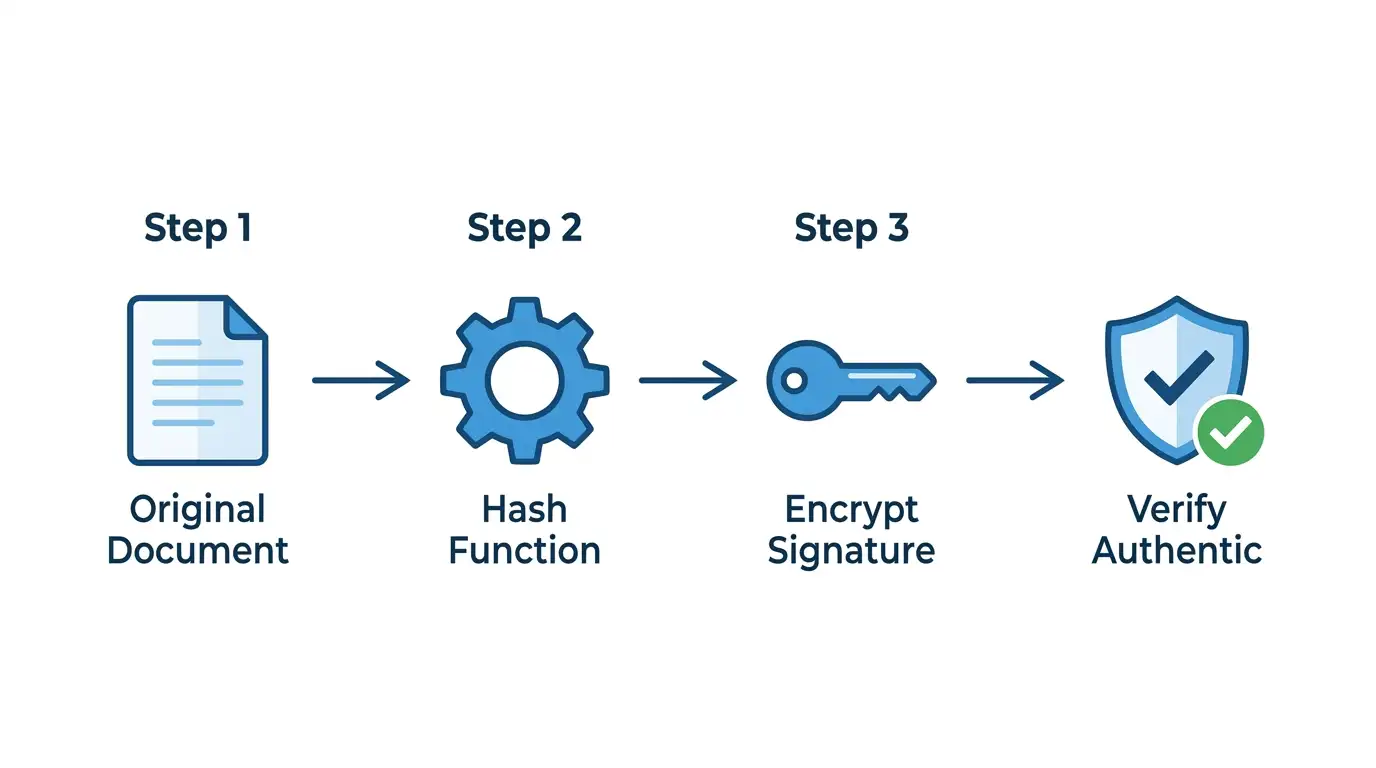
When someone opens the signed document, their software decrypts your signature using your public key. It creates its own hash of the document and compares the two. If they match, the signature is valid and the document is untampered. If even one character changed, the hashes will not match. The signature breaks. The tampering is exposed.
This property is called nonrepudiation. It means you cannot later deny having signed the document. Courts and regulatory bodies accept this as legal proof in dozens of countries.
Digital Signature Certificate vs Electronic Signature
People mix these up constantly. They are not the same.
An electronic signature is broad. It includes anything from typing your name in a font, drawing on a touchscreen, clicking “I agree,” or uploading a scanned image of your wet ink signature. Simple electronic signatures carry very little cryptographic security.
A digital signature certificate is a specific type of electronic signature that uses PKI cryptography. It is tamper evident, identity verified, and legally enforceable under laws like the Information Technology Act 2000 in India, the ESIGN Act in the United States, and the eIDAS regulation in the European Union.
For legal documents, government filings, and secure business contracts, only a DSC provides the level of protection regulators and courts actually require.
Types of Digital Signature Certificate (Class 1, 2, and 3)
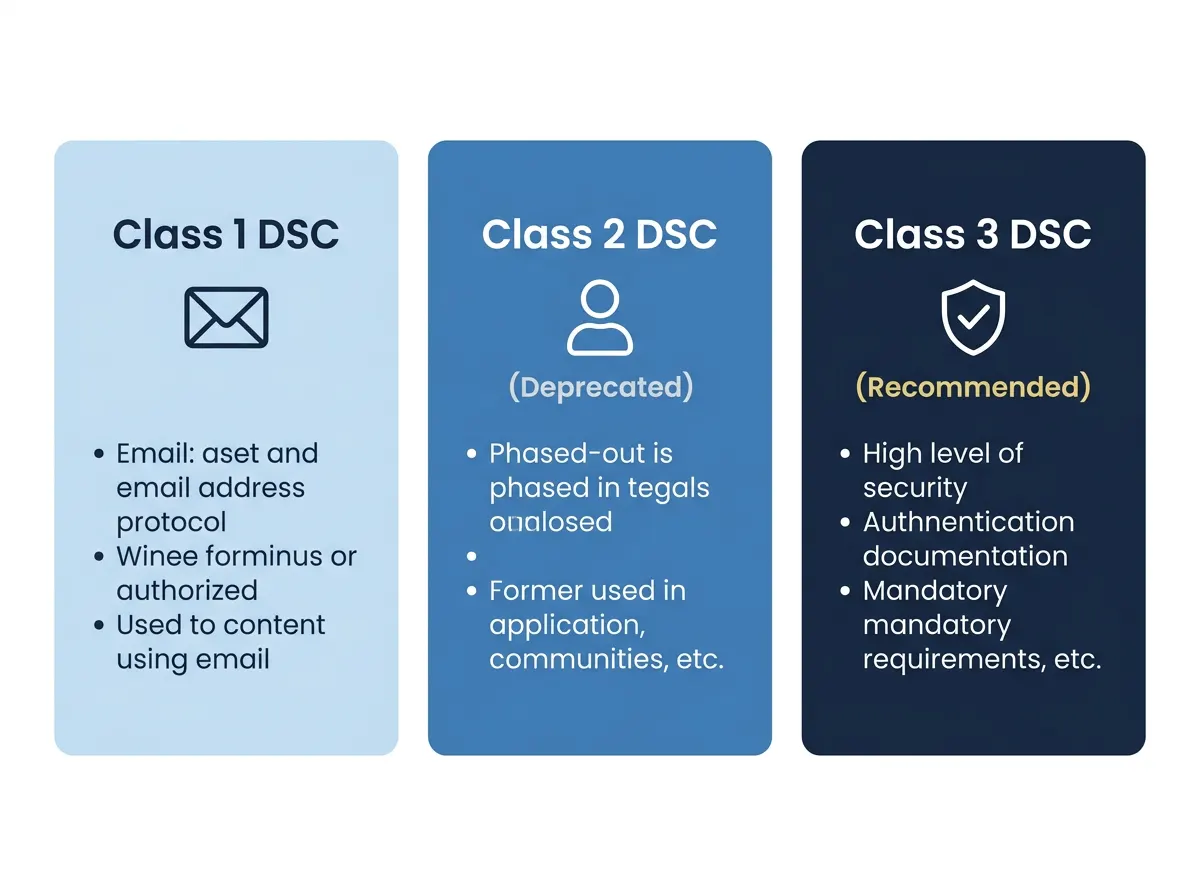
There are three classes of DSC, and choosing the wrong one is one of the most common beginner mistakes I see. Each class has a different level of identity verification behind it.
Class 1 Digital Signature Certificate
A Class 1 DSC provides the most basic level of assurance. The Certifying Authority verifies only your email address and name against a subscriber database. There is no physical identity verification involved.
Class 1 certificates work for securing personal email communication using S/MIME protocols. They are not accepted for company filings, tax portals, or official government transactions. If you are a freelancer sending encrypted correspondence to protect client communication, a Class 1 DSC covers that use case.
Class 2 Digital Signature Certificate
A Class 2 DSC verifies your identity against a preverified database of individuals. India’s Controller of Certifying Authorities has deprecated the issuance of standalone Class 2 DSCs for individual signatories in recent years, pushing users toward Class 3 for higher assurance needs.
For most practical purposes in 2025, you will either use a Class 1 for basic email or a Class 3 for anything that involves government portals.
Class 3 Digital Signature Certificate
A Class 3 DSC is the highest level. It requires in person identity verification or the modern equivalent, Video KYC (VKYC) by a licensed Certifying Authority. The CA physically confirms that you are who you claim to be before issuing the certificate.
This is the certificate you need for:
- Filing income tax returns on the Indian IT portal
- GST registration and GST filings
- Company incorporation and filings on the MCA21 portal
- E tender submissions for government contracts
- Filing on the TRACES portal for TDS matters
- Electronic submissions through the Customs EDI system
- EPFO digital signature requirements
Class 3 DSCs are issued onto a USB token a small hardware device, often called an ePass 2003 or WatchData token which stores your private key securely. The private key never leaves the token. This hardware based security is what makes Class 3 certificates legally defensible.
Documents Required for Digital Signature Certificate
Before you start the application process, you need to gather the right documents. Missing even one will delay your application. Here is exactly what the major Certifying Authorities require.
| Document Category | Acceptable Examples |
|---|---|
| Proof of Identity | PAN Card, Aadhaar Card, Passport, Driving License, Voter ID |
| Proof of Address | Aadhaar Card, Passport, Bank Statement (last 3 months), Utility Bill (last 3 months) |
| Passport size Photograph | Recent, clear, white background |
| Organization Proof (for Class 3 organizational) | Certificate of Incorporation, MOA/AOA, GST Registration Certificate |
| Email Address | Active email you can access during verification |
| Mobile Number | Active mobile linked to Aadhaar for VKYC OTP verification |
For Indian applicants specifically, Aadhaar linked mobile verification is now a standard part of the Video KYC process at most Certifying Authorities. Make sure your mobile number is active and registered with Aadhaar before starting.
How to Generate Digital Signature Certificate: Step by Step Process
To generate a digital signature certificate, you must complete a five step process: choose a licensed CA, fill the application form, complete KYC verification, make payment, then download and install the certificate onto your USB token. This entire process takes two to five business days.
Step 1: Choose a Licensed Certifying Authority
This is the most important decision in the whole process. You cannot get a legally valid DSC from just anyone. You must use a CA that is licensed by India’s Controller of Certifying Authorities (CCA) under the Ministry of Electronics and Information Technology.
The major licensed CAs active in 2025 are:
- eMudhra (3i Infotech) one of the most widely used
- NSDL eGovernance Infrastructure Limited
- Sify Technologies
- (n)Code Solutions (a GNFC product)
- Capricorn Identity Services
- IDSign
Each of these CAs has an official portal where you start your application. For general business use, eMudhra and NSDL are the two I have seen most freelancers and small business owners use successfully. For government contractor work, check whether your specific e tender portal specifies a preferred CA, because some do.
For Western markets if you are in the United States, United Kingdom, or Canada the equivalent licensed trust service providers recognized under the Adobe Approved Trust List (AATL) and EU Trust List (EUTL) include DigiCert, GlobalSign, IdenTrust, and Entrust. These providers issue document signing certificates that are trusted across global platforms by default.
Step 2: Fill the Digital Signature Certificate Application Form
Each CA has its own online application portal, but the information they ask for is nearly identical. You will fill in:
- Your full legal name exactly as it appears on your identity proof
- Your designation and organization name (for organizational DSCs)
- Your email address
- Your registered mobile number
- The validity period you want (one year or two years are standard)
- The class of certificate (Class 3 for most filing purposes)
- The purpose (signature only, or encryption, or both)
Most applications take under ten minutes to fill. The most critical thing here is accuracy. Your name on the application must match your identity document exactly. Even a middle name discrepancy can trigger rejection and delay your application by days.
After filling the form, you will typically see an option to upload your scanned documents. Upload clear, legible scans. Blurry photographs are one of the most frequent causes of application rejection.
Step 3: Complete KYC Verification
KYC verification is how the CA confirms you are actually the person named on the application. In 2025, Video KYC has become the standard method. Physical in person verification still exists but is now the slower, less common option.
Video KYC works like this: you schedule a short video call with a CA representative through the CA’s portal or mobile app. During the call, the representative asks you to:
- Hold your original identity document up to the camera
- Speak your name and consent to the DSC issuance
- Confirm the details on your application
The entire call usually takes five to fifteen minutes. Some CAs use automated VKYC systems where you go through an AI guided video process rather than speaking with a live agent. Either way, the verification data is recorded and stored securely as part of your certificate’s audit trail.
After VKYC, an OTP is sent to your Aadhaar linked mobile number. You enter this OTP to complete the biometric authentication layer of the process.
Step 4: Make Payment
DSC pricing varies by CA, by class, and by validity period. Here are rough 2025 market ranges for India:
| Certificate Type | 1-Year Price Range | 2-Year Price Range |
|---|---|---|
| Class 3 (Individual, Signature) | ₹1,000 – ₹1,800 | ₹1,500 – ₹2,500 |
| Class 3 (Individual, Sign + Encrypt) | ₹1,200 – ₹2,000 | ₹1,800 – ₹3,000 |
| Class 3 (Organization) | ₹1,500 – ₹2,500 | ₹2,200 – ₹3,800 |
These prices typically include the USB token hardware for first time applicants. If you are renewing an existing DSC, you may be able to purchase certificate only (no token) at a lower price.
For US based professionals, DigiCert’s document signing certificates start at around $180 to $250 per year. GlobalSign and IdenTrust offer comparable pricing.
Payment is made online through the CA’s portal using standard payment methods credit card, debit card, net banking, or UPI for Indian portals.
Step 5: Download and Install Digital Signature Certificate on USB Token
Once the CA processes your KYC and payment, they will issue your certificate. The delivery method depends on which class and format you ordered.
For Class 3 DSCs issued on a USB token, the CA ships the physical token to your registered address with the certificate already loaded. In some cases with eMudhra and NSDL, you can also use their software to load the certificate yourself after receiving a download link. You will need to:
- Install the USB token driver software (provided by the CA or token manufacturer)
- Insert the USB token into your computer
- Open the token management software
- Use the provided certificate password to import the certificate
- Verify the installation by checking your Windows Certificate Manager (Control Panel > Internet Options > Content > Certificates > Personal)
For document signing certificates from US/EU providers like DigiCert or GlobalSign, the certificate typically comes as a .pfx or .p12 file download. You import this file into your system certificate store or directly into Adobe Acrobat’s digital ID preferences.
How to Generate Digital Signature Certificate in Word
To generate a digital signature certificate in Word, you use SelfCert.exe, a built in Microsoft Office tool that creates a self signed certificate stored in your Windows Personal Certificates store. This certificate is free, instant, and works within the Microsoft ecosystem.
This is the method I showed my colleague when he needed to sign documents fast. It does not require any external CA, any payment, or any waiting period. The tradeoff is that it is not trusted outside your own computer. Recipients will see a trust warning unless they manually add your certificate to their trusted certificates list.
Use this method for internal documents, drafts sent to people who trust you directly, or situations where the legal binding requirement is low.
Here is exactly how to do it:
Step 1. Open File Explorer and navigate to your Microsoft Office installation folder. The typical path on Windows is:
C:\Program Files\Microsoft Office\root\Office16
If you are on a 32-bit installation, look in Program Files (x86) instead. The folder number (Office16, Office15) corresponds to your Office version.
Step 2. Find the file called SelfCert.exe. Double click to run it. Windows may ask for permission click Yes.
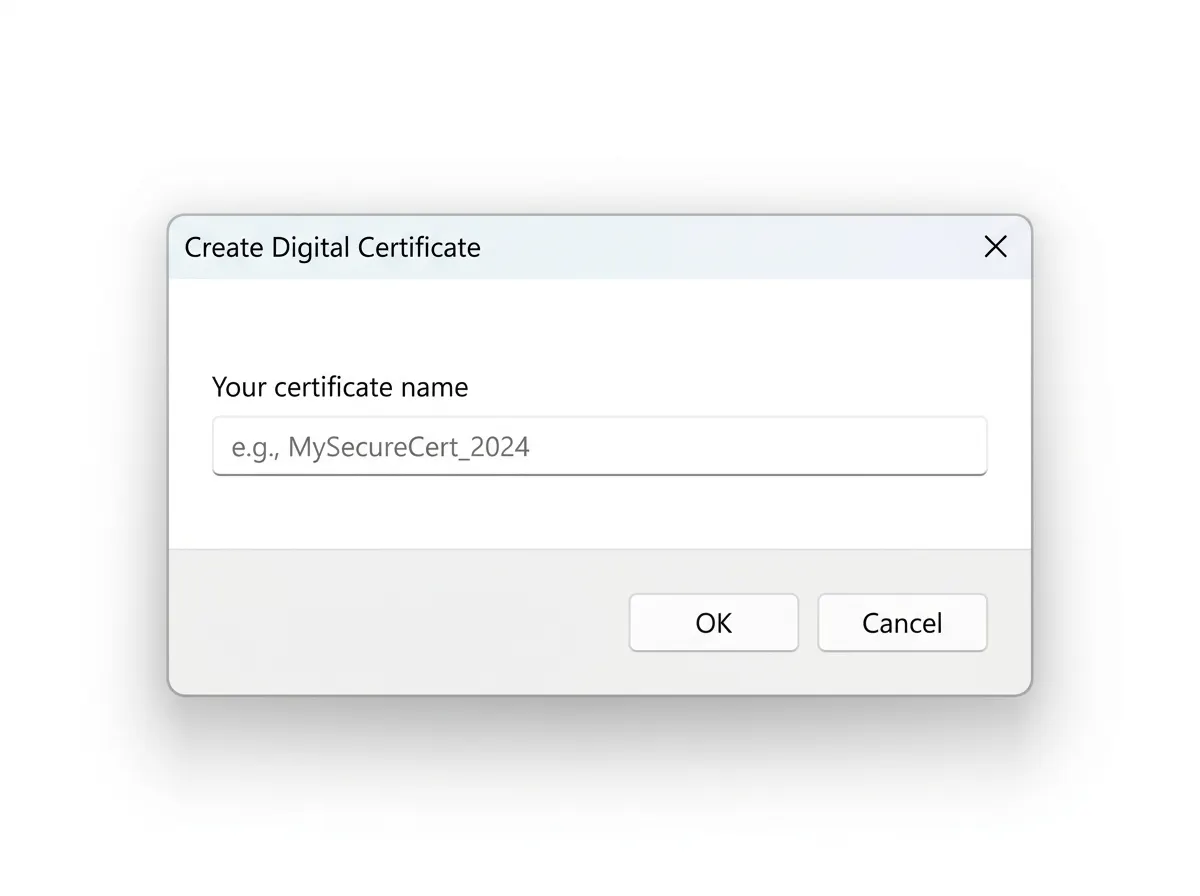
Step 3. In the dialog box that appears, type a descriptive name for your certificate. Use something you will recognize, like “Muhammad Muzammil Signature” or “GigLawGuide Author Certificate.” Click OK.
Step 4. Windows will confirm that a new certificate was successfully created. It is now stored in your Personal Certificates store under the Windows Certificate Manager.
Step 5. Open the Word document you want to sign. Go to the Insert tab. On the right side of the ribbon, look for the Signature Line option. Click it.
Step 6. A dialog box asks for the signer’s name, title, and email. Fill these in and click OK. A signature line placeholder appears in your document.
Step 7. To actually sign, double click the signature line. Word will prompt you to select your digital ID. Choose the certificate you just created with SelfCert.exe. You can also add an image of your physical signature at this step. Click Sign.
The document is now digitally signed and locked. Any modification to the document after signing will automatically invalidate the signature, and Word will display a warning.
Important note: If you need this signed document to pass verification by an external party a government portal, a legal counterparty, or a business client you have never dealt with before a self signed certificate from SelfCert.exe will not work. You need a certificate from a licensed CA. But for internal workflows, contract drafts between known parties, and document integrity verification within your own organization, this method is fast, free, and entirely legitimate.
How to Add a Digital Signature in Microsoft Word Without SelfCert
There is a second path inside Word for users who already have a .pfx certificate file from a CA. In this case:
- Open your Word document
- Go to File > Info > Protect Document > Add a Digital Signature
- Word will open the signature dialog
- If no certificate is detected, click Change to browse for your .pfx file
- Enter the password for your certificate file when prompted
- Select the certificate and click Sign
This method works seamlessly with DigiCert, GlobalSign, and other AATL trusted certificates. The signature you create this way will be trusted by any Adobe Reader, any Word installation, and any PDF viewer without a trust warning.
How to Generate Digital Signature Certificate Online Free
To generate a digital signature certificate online free, use Adobe Acrobat or a platform like DocuSign, DigiSigner, or SmallPDF to create a self signed digital ID directly in the browser or desktop application. These platforms are free for basic use and require no CA application.
This is the most beginner friendly path. No software installation is required beyond what you likely already have. Here is how to do it on the two most reliable platforms.
Using Adobe Acrobat (Free Desktop Version)
Adobe Acrobat’s free desktop application allows you to create a self signed digital ID and use it to sign PDFs. Here is the step by step process:
Step 1. Open Adobe Acrobat. Go to Edit > Preferences on Windows, or Acrobat > Settings on Mac.
Step 2. In the Preferences panel, click Signatures in the left category list. Then click More under “Identities and Trusted Certificates.”
Step 3. The Digital ID and Trusted Certificate Settings window opens. Click the Add ID button (the plus icon in the top left).
Step 4. Select “A new digital ID I want to create now” and click Next.
Step 5. Choose where to save the digital ID. The options are the Windows Certificate Store (shared across applications) or a file on your system (a .pfx file you control directly). For portability, choose the file option and save it somewhere you will remember.
Step 6. Fill in your name, organization, email address, and country. Set the key algorithm to RSA 2048-bit or higher. Create a strong password. Click Finish.
Your digital ID now exists inside Adobe. To use it, open any PDF, go to Tools > Certificates > Digitally Sign, draw a signature area on the page, select your newly created ID, and click Sign. The PDF is locked and signed.
Using DocuSign (Free Tier)
DocuSign is a commercial platform but offers a free plan that allows you to send and sign a limited number of documents per month. The process is entirely online.
You upload your document to the DocuSign portal. You use their graphical signature creator to draw, type, or upload an image of your signature. DocuSign applies a certificate on the backend and delivers a completed, tamper evident signed document to all parties.
DocuSign certificates on their standard free tier are not PKI backed at the same level as a Class 3 DSC from a licensed CA. But they are sufficient for most commercial contracts, freelance agreements, and service agreements where all parties are comfortable using the platform.
Using DigiSigner (Free Online)
DigiSigner is a lightweight online signature tool. You upload your PDF, place your signature, and download the signed version. Free tier usage allows a set number of documents per month.
The signed PDF from DigiSigner includes an audit trail and a certificate that records who signed, when, and from what IP address. This level of documentation is sufficient for low stakes contracts and basic business correspondence.
How to Generate Digital Signature Certificate for Income Tax
To generate a digital signature certificate for income tax, you need a Class 3 DSC from a licensed CA like eMudhra or NSDL. Once issued, you register the certificate on the Income Tax India portal at incometax.gov.in under your profile settings.
This is a specific use case that catches many first time filers by surprise. The income tax portal does not accept self signed certificates or certificates from non licensed CAs. It requires a proper PKI backed Class 3 DSC with valid identity verification.
Here is how to register your DSC on the Income Tax portal after obtaining it:
Step 1. Log into the Income Tax India portal at incometax.gov.in using your PAN and password.
Step 2. Go to My Profile (top right corner) and select Register DSC from the dropdown menu.
Step 3. Insert your USB token into your computer. Make sure the USB token driver is installed and the token is detected by your browser.
Step 4. The portal will detect your DSC. Confirm the certificate details name, PAN, and certificate serial number.
Step 5. Click Register. The portal saves your DSC against your PAN account.
Step 6. From now on, when you submit returns or sign declarations on the portal, you can choose DSC as your verification method. The portal will prompt you to insert your token and enter the token PIN.
One common error at this stage is a browser compatibility issue. The Income Tax portal uses Java based DSC plugins that work best with Internet Explorer (legacy), Edge in IE compatibility mode, or Chrome with the appropriate extension installed. If your DSC is not being detected, this is the first thing to check.
How to Generate Digital Signature Certificate for GST
For GST registration and GST filings, the GST portal (gst.gov.in) requires a Class 3 DSC from a licensed Indian CA. The process of registering your DSC on the GST portal mirrors the Income Tax portal process.
Companies, LLPs, and other corporate entities with mandatory GST registration must use a DSC to submit their GST application and sign filings. Proprietors have the option of using Aadhaar based electronic verification (EVC) as an alternative, but a DSC is more reliable and preferred for high volume filers.
To register your DSC on the GST portal:
Step 1. Log into gst.gov.in and go to your Dashboard.
Step 2. Under My Profile, select Manage DSC.
Step 3. Enter your GSTIN and select the authorized signatory’s PAN from the dropdown.
Step 4. Insert your USB token. The portal should detect the certificate automatically.
Step 5. Verify the DSC details and click Proceed to complete registration.
Once registered, you can use your DSC to sign GST returns, respond to notices, and apply for amendments on the GST portal.
How to Generate Digital Signature Certificate on MCA21 Portal
The Ministry of Corporate Affairs MCA21 portal requires a Class 3 DSC for directors, authorized signatories, and company secretaries filing documents related to company incorporation, annual filings, charge creation, and other corporate compliance matters.
Step 1. Obtain your Class 3 DSC from a licensed CA. For MCA21 purposes, the DSC must be in the name of the individual authorized signatory not the company name.
Step 2. Go to the MCA portal at mca.gov.in. Log in with your registered credentials.
Step 3. Under the MCA Services section, locate the DSC Registration option.
Step 4. Enter your Director Identification Number (DIN) or Designated Partner Identification Number (DPIN) as applicable.
Step 5. Insert your USB token and follow the prompts to associate your DSC with your DIN.
Step 6. Once registered, any eForm you submit on MCA21 from SPICe+ for company incorporation to AOC4 for annual filings can be signed digitally using your registered DSC.
The egovernance India infrastructure built around MCA21 is one of the most active use environments for Class 3 DSCs in the country. If you are helping a startup founder get their company registered, this portal is where a DSC becomes nonnegotiable from day one.
How to Install Digital Signature Certificate on Windows 10 and Windows 11
Installing a digital signature certificate on Windows 10 and Windows 11 follows the same process, whether you received a .pfx file from a CA or are loading from a USB token.
Installing from a .pfx or .p12 File
Step 1. Double click the .pfx file you received from your CA. The Certificate Import Wizard opens.
Step 2. Choose the store location. Select “Current User” unless you need all users on the machine to use this certificate.
Step 3. The file path is prefilled. Click Next.
Step 4. Enter the password provided by your CA for this certificate file. Check the box to mark the key as exportable only if you plan to move the certificate to another machine later.
Step 5. Let Windows automatically select the certificate store (it will place signing certificates in the Personal store). Click Next and then Finish.
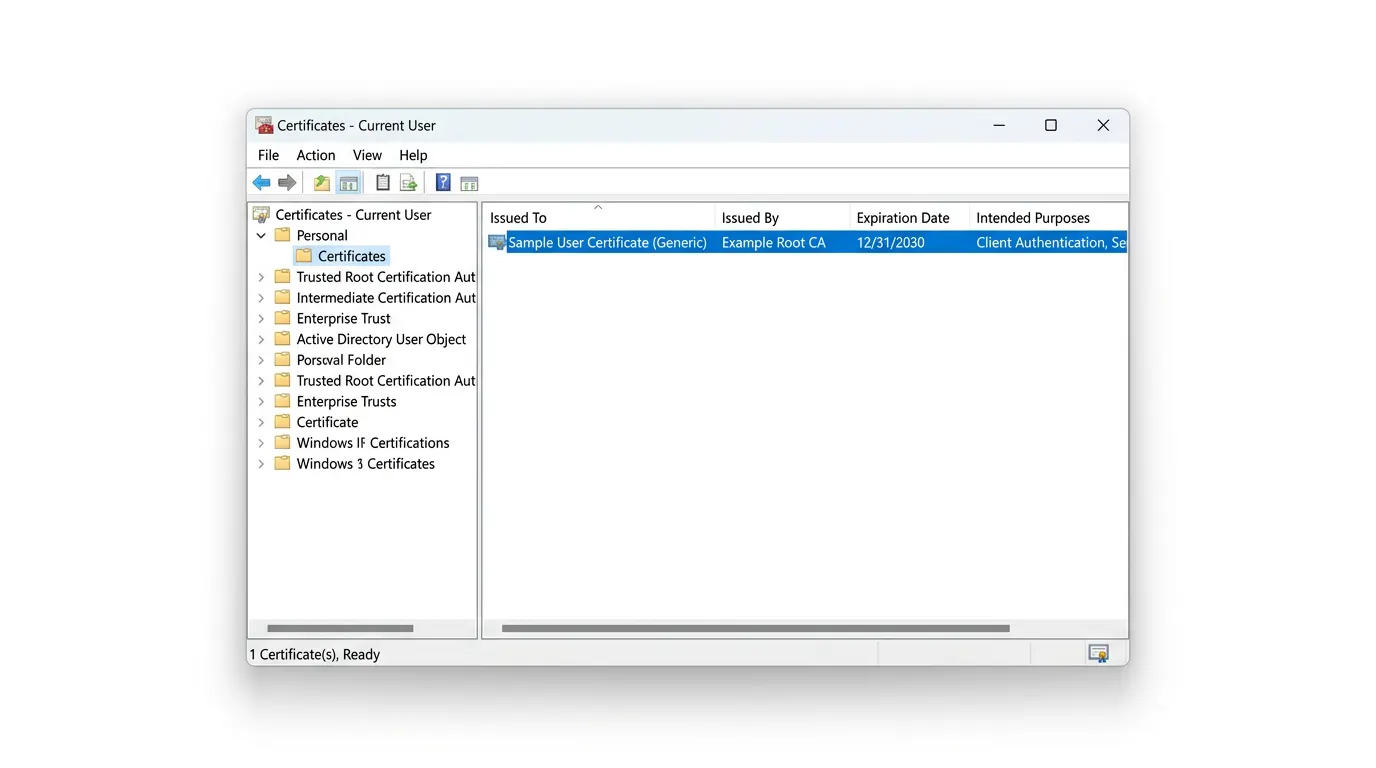
Step 6. Verify the installation by opening Certificate Manager. Press Windows + R, type certmgr.msc, and press Enter. Navigate to Personal > Certificates. You should see your newly installed certificate listed here.
Installing from a USB Token (ePass 2003, WatchData)
Step 1. Download and install the driver software for your specific USB token model. eMudhra tokens use the ePass 2003 Auto driver. NSDL tokens may use WatchData or SafeNet drivers. Your CA provides the download link.
Step 2. Insert the USB token. Windows Device Manager should recognize it without errors once the driver is installed.
Step 3. Open the token management software. Most CAs provide a tool like SafeNet Authentication Client or the eMudhra client software.
Step 4. The certificate on the token is already loaded. It appears in your browser’s and operating system’s certificate store automatically through the PKCS#11 interface provided by the token driver.
Step 5. Verify by opening Internet Options in Control Panel > Content tab > Certificates > Personal. Your DSC should appear there.
Browser Configuration for Government Portals
Here is a fact that trips up almost every first time user: government portals in India still depend on legacy browser technology for DSC based authentication. The income tax portal, GST portal, MCA21, and TRACES portal all have specific browser requirements.
Microsoft Edge in IE compatibility mode works for most portals as of 2025. You enable this under Edge Settings > Default browser > Internet Explorer compatibility. Add the specific government portal domain to the IE compatibility list.
Google Chrome works on some portals after installing the portal specific extension or enabling the Java plugin where required.
Mozilla Firefox has reduced its Java support significantly. For most Indian government portals, Firefox is no longer reliable for DSC authentication.
The single best troubleshooting step for any DSC not working on a government portal is to check the portal’s own help documentation for the current list of supported browsers and browser settings. These requirements change when portals update their infrastructure, and the official documentation is always the most current source.
How to Use Digital Signature Certificate in PDF
Using a digital signature certificate in PDF documents is the most common everyday use case for most professionals. Both Adobe Acrobat (free and paid) and many third party PDF tools support PKI based digital signatures.
Signing a PDF in Adobe Acrobat
Step 1. Open your PDF in Adobe Acrobat.
Step 2. Go to Tools in the top menu, then select Certificates.
Step 3. Click Digitally Sign. Your cursor changes to a crosshair.
Step 4. Draw a rectangle on the page where you want the signature to appear.
Step 5. Select your digital ID from the list. If you have both a self signed certificate and a CA issued certificate, choose the appropriate one for your use case.
Step 6. Configure your signature appearance. You can show your name, date, certificate details, and even an image of your handwritten signature.
Step 7. Click Sign and save the file.
The signed PDF now carries a visible signature block and an invisible PKI layer. Any PDF viewer can validate the signature by checking the certificate details. Adobe Reader will show a green checkmark and the message “Signed and all signatures are valid” when the certificate is trusted. A yellow caution icon means the certificate is self signed and not in the trusted list. A red X means the document was modified after signing.
Signing a PDF in Wondershare PDFelement
PDFelement is a popular alternative to Adobe for users who want a one time purchase rather than a subscription. The process is similar. Go to Protect > Sign Document, draw your signature area, select your digital ID, and sign.
The PKCS#12 Format
When you export or transfer certificates, they are typically stored in PKCS#12 format, which uses the .pfx or .p12 file extension. This is the universal format for moving a certificate and its private key together. If you need to use your certificate on multiple devices for example, your desktop and your laptop you export it as a .pfx file from one machine and import it on the other.
Never share your private key or .pfx file with anyone. The private key is what makes the signature legally yours. If someone else has it, they can sign documents as you.
Best Certifying Authorities for Digital Signature Certificate (Comparison)
Choosing the right CA affects your application experience, pricing, customer support quality, and long term renewal process. Here is a comparison of the major Indian CAs based on my research and community feedback.
| CA Provider | DSC Classes | VKYC Available | Price Range (2Y Class 3) | Turnaround Time | Best For |
|---|---|---|---|---|---|
| eMudhra | 1, 3 | Yes | ₹1,500 – ₹2,800 | 1–3 business days | Individuals, freelancers, SMEs |
| NSDL eGov | 1, 3 | Yes | ₹1,400 – ₹2,600 | 2–4 business days | Income tax, government portals |
| Sify Technologies | 1, 3 | Yes | ₹1,600 – ₹2,900 | 2–4 business days | Corporate users |
| (n)Code Solutions | 1, 3 | Yes | ₹1,500 – ₹2,700 | 2–3 business days | General business, DISA users |
| Capricorn Identity | 1, 3 | Yes | ₹1,200 – ₹2,400 | 1–2 business days | Budget conscious applicants |
For the US and EU markets:
| CA Provider | Certificate Type | Price Range (Annual) | Trust Level | Best For |
|---|---|---|---|---|
| DigiCert | Document Signing | $180 – $299/yr | AATL + EUTL | Enterprise, legal |
| GlobalSign | PersonalSign | $199 – $349/yr | AATL | Legal, finance |
| IdenTrust | Document Signing | $179 – $299/yr | AATL + Federal Bridge | US government, healthcare |
| Entrust | Document Signing | $189 – $329/yr | AATL | Global business |
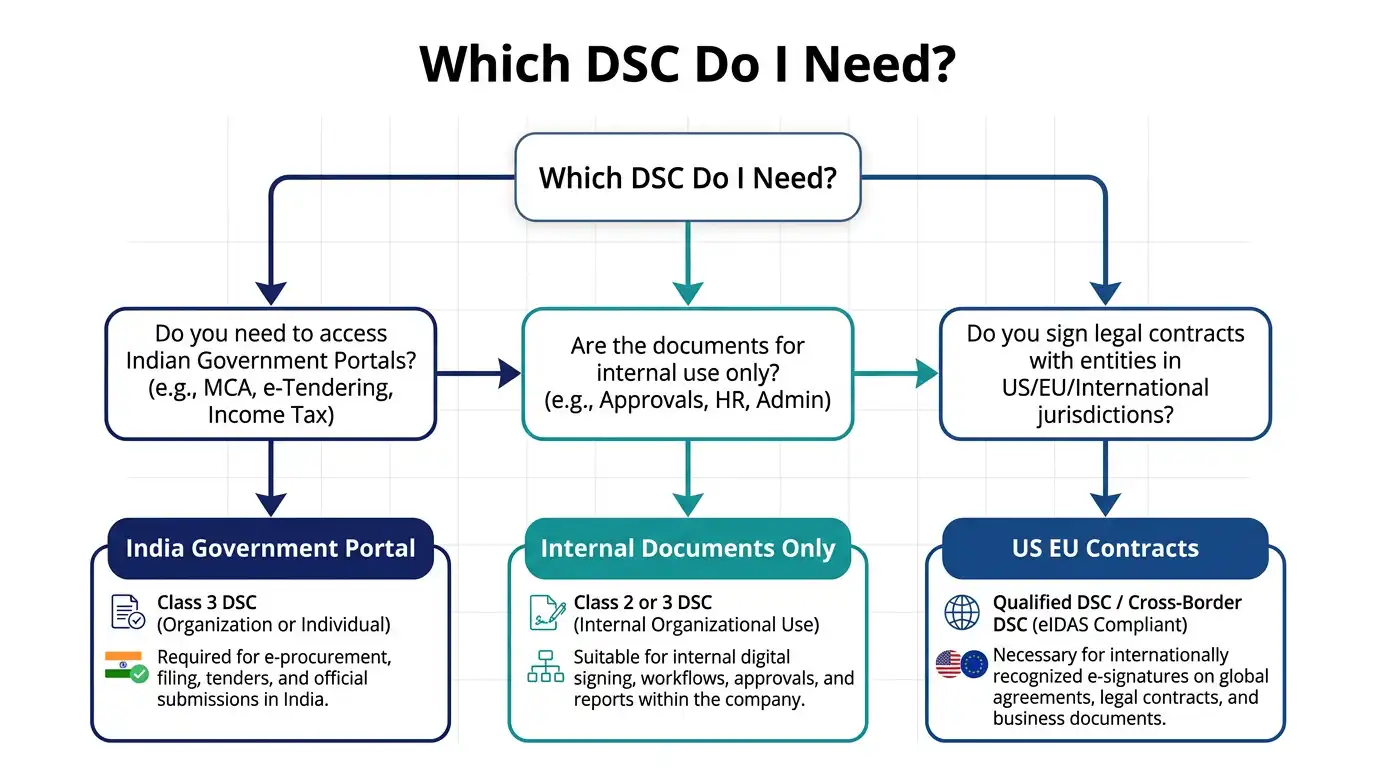
The Adobe Approved Trust List (AATL) is key for Western markets. Any certificate from an AATL member CA will be automatically trusted in Adobe Reader and Adobe Acrobat worldwide without any trust warning. That automatic trust is worth the annual fee for anyone who sends signed documents to clients regularly.
Common Digital Signature Certificate Errors and How to Fix Them
I have spent time in forums where users report DSC problems. The same issues come up again and again. Here are the most common ones and the fixes that actually work.
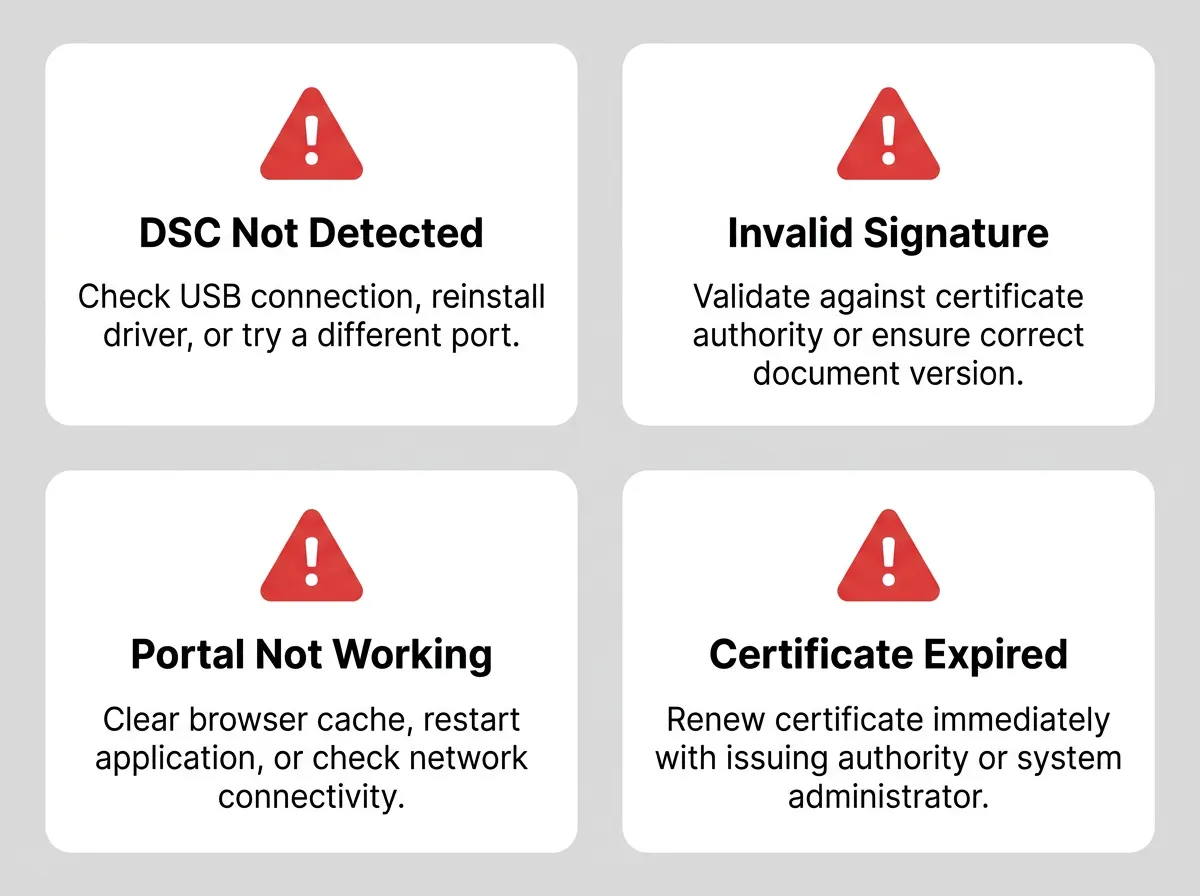
Error: DSC Not Detected by Browser
This is the number one problem. You insert the token. Nothing happens. The portal says no DSC is found.
Fix: Check three things in order. First, is the token driver installed correctly? Open Device Manager and look for the token under “Smart Card Readers” or “USB devices.” If there is a yellow warning icon, reinstall the driver. Second, are you using a compatible browser? See the browser configuration section above. Third, has your DSC expired? Expired certificates will not be detected by portals. Check the expiry date in Certificate Manager.
Error: Invalid Signature or Signature Not Valid
You signed a document and the recipient sees “signature not valid.”
Fix: This usually means either the certificate is self signed (not from a trusted CA) or the certificate chain is incomplete. For self signed certificates, the recipient needs to manually add your certificate to their trusted list. For CA issued certificates, check that the intermediate certificate and root certificate from the CA are properly installed on both machines. Download the CA’s certificate chain from their official website and install it.
Error: Digital Signature Certificate Not Working on Income Tax Portal
This specific error has dozens of variations but usually comes down to browser settings.
Fix: Enable IE compatibility mode in Edge. Make sure your USB token driver is the version the portal recommends (check the portal’s downloads section). Clear your browser cache completely. If the portal uses a Java applet, ensure Java is installed and enabled in the browser security settings. If none of this works, try a different browser or a different computer to isolate whether it is a system specific issue.
Error: Digital Signature Certificate Expired How to Renew
DSCs are issued with validity periods of one or two years. When yours expires, you need to renew it. Renewal is simpler than the original application.
Fix: Go back to your original CA’s portal. Most CAs offer an online renewal option where your existing KYC documents are already on file. You fill a renewal form, complete a simplified VKYC or document resubmission, make payment, and receive a new certificate. If you have the original USB token, the renewed certificate is loaded onto the same token. If the token is damaged or lost, you need to purchase a new one.
Start the renewal process at least two weeks before your existing certificate expires. This avoids the gap period where you have an expired certificate and cannot complete time sensitive filings.
Error: DSC Not Transferred to New Computer
You changed computers and your DSC no longer works.
Fix: If your certificate was stored in a .pfx file, locate that file on your old machine (or in your backup) and import it onto the new machine using the Certificate Import Wizard. If your DSC is on a USB token, simply install the token driver on the new computer. The token is portable it carries the certificate with it. Plug it in, install the driver, and it should appear in the new machine’s certificate store immediately.
Digital Signature Certificate for Remote Workers and Freelancers
This is where I want to spend a moment on something I personally care about. As someone who works remotely and writes for a freelance focused audience, the practical value of a DSC for independent workers deserves specific attention.
If you work as a remote content writer, developer, designer, consultant, or any kind of service provider you are regularly signing contracts with clients you have never met in person. Those contracts are your legal protection. A client in the United States, United Kingdom, Germany, or Australia who asks you to sign a service agreement electronically expects a document that would hold up in their jurisdiction if things go wrong.
A simple typed name in a “signature” box offers very little protection. A proper DSC whether it is an AATL trusted certificate from DigiCert or a Class 3 DSC from eMudhra for India based work provides:
- Proof that you specifically signed the document
- Proof of the exact date and time of signing
- Protection that the contract has not been altered after signing
- A legally recognized form of consent in most major jurisdictions
I learned about the ESIGN Act when researching US client contracts, and the eIDAS regulation when dealing with EU based clients. Both of these legal frameworks recognize PKI backed digital signatures as legally equivalent to wet ink signatures for the vast majority of commercial contracts. The Information Technology Act 2000 and its 2008 amendment provide the same recognition in India.
Knowing this changes how you approach client negotiations. You are not just sending a signed PDF. You are sending a document with a legal record attached. That professionalism signals to clients that you take your work seriously.
How Long Does It Take to Get a Digital Signature Certificate?
Most DSC applications take two to five business days from submission to certificate delivery. The fastest providers complete VKYC based applications in one to two business days.
The factors that most affect turnaround time are:
- Completeness of your application and documents (incomplete documents cause delays)
- How quickly your VKYC session is completed (you control this)
- CA processing volume at the time of application
- Whether physical token delivery is required or if online certificate download is available
For income tax filing emergencies, eMudhra and Capricorn Identity both advertise same day or next day processing for extra urgent applications. These faster track services usually carry a small premium fee. It is worth paying that premium once rather than missing a filing deadline and facing a penalty.
Can I Generate a Digital Signature Certificate Without a USB Token?
Yes and no and the distinction matters.
For self signed certificates created through SelfCert.exe in Microsoft Office or through Adobe Acrobat’s digital ID creator, no USB token is required. These certificates are stored in your computer’s certificate store or in a .pfx file.
For officially trusted certificates from US/EU providers like DigiCert or GlobalSign, most document signing certificates are delivered as .pfx files and do not require a hardware token. These work across all AATL trusted applications.
For Class 3 DSCs in India, the standard requirement is a USB token. The private key must be stored on hardware based security to comply with CCA guidelines. However, some CAs now offer “software DSC” options for specific use cases where a hardware token is not required. These software DSCs have more limited acceptance on government portals many Indian government portals specifically require the USB token form factor. Always verify with your specific target portal before choosing the software option.
Digital Signature Certificate for Company Directors and Company Secretaries
One specific audience that searches for this topic constantly is company directors and company secretaries in India who need DSCs for corporate compliance purposes. This section is for you.
Under the Companies Act 2013, every director of a company must have a Director Identification Number (DIN). And every filing made by a director on the MCA21 portal from an annual return to a resolution to a change in registered office address must be authenticated using a DSC linked to that director’s DIN.
Company Secretaries who sign documents on behalf of their client companies need their own individual DSCs as well. The CS’s DSC is linked to their Institute of Company Secretaries of India (ICSI) membership number and their PAN.
Getting a DSC as a Company Director
The process follows the same Class 3 application pathway described earlier. The key difference is in what you enter on the application form.
You apply as an individual, not as the company. The certificate is issued in your personal name as it appears on your PAN card. During the MCA21 DSC registration step, you link your personal certificate to your DIN that linkage is what allows the portal to recognize your signature as authorized for that company’s filings.
If you are a director of multiple companies, one DSC is sufficient. You link the same certificate to each of your DINs. You do not need a separate certificate per company.
Foreign Directors on Indian Companies
Foreign nationals who are directors on Indian companies face an additional layer of identity verification. The standard Aadhaar based VKYC is not available to foreign nationals who do not hold Aadhaar cards.
In this situation, the CA requires apostilled copies of the director’s passport, address proof, and a completed application form. Some CAs have specialist teams for foreign national DSC applications. The verification process typically takes longer up to seven to ten business days.
Digital Signature Certificate for Chartered Accountants and Auditors
Chartered Accountants occupy a unique position in India’s DSC ecosystem. CAs are required to attach their DSC to audit reports, tax audit reports (Form 3CD), and various certifications submitted to the Income Tax Department and to the MCA.
The Institute of Chartered Accountants of India (ICAI) has worked with the Income Tax Department to implement a specific DSC registration flow for CAs on the income tax portal. The CA registers their DSC against their ICAI membership number and PAN. From that point, their signed submissions carry the authority of their professional membership as an additional layer of credibility.
For practicing CAs, a two year Class 3 DSC is usually the most cost effective choice. The high volume of filings during tax season means the certificate gets used frequently. A short one year validity creates the risk of expiry during a critical filing period.
Understanding the X.509 Certificate Standard
If you have ever looked at a certificate file and seen references to X.509, here is what that means in plain language.
The X.509 certificate standard is the technical specification that defines the format of public key certificates. It was originally defined by the International Telecommunication Union and has gone through several revisions. The current standard is X.509 version 3.
An X.509 certificate contains:
- The certificate holder’s identity (name, organization, email, country)
- The certificate holder’s public key
- The name of the CA that issued the certificate
- The validity period (not before and not after dates)
- The certificate’s serial number
- Digital extensions that define the permitted uses of the certificate
- The CA’s digital signature over all of the above
When you look at a certificate in your browser or in Certificate Manager, every piece of information you see is defined by the X.509 standard. This standardization is what makes certificates interoperable. A certificate issued by DigiCert in the United States can be verified by Adobe Reader in Pakistan, by a government portal in India, or by a law firm’s document management system in the United Kingdom. The X.509 standard is the shared language that makes this global interoperability possible.
RSA Algorithm and SHA 256 Hashing
Two cryptographic concepts come up repeatedly in DSC documentation: RSA and SHA 256.
RSA is the encryption algorithm used to generate your key pair. RSA stands for Rivest, Shamir, Adleman the three mathematicians who invented it. Modern DSCs use RSA with a 2048-bit or 4096-bit key length. The larger the key, the harder it is to break. 2048-bit RSA is considered secure for most commercial purposes through at least 2030. 4096-bit RSA provides a larger security margin for highly sensitive applications.
SHA 256 is the hashing algorithm used to create the document fingerprint before it is signed. SHA stands for Secure Hash Algorithm; 256 refers to the bit length of the output hash. SHA 256 is part of the SHA 2 family, which replaced the older and now broken SHA 1 standard. If you see a certificate that still uses SHA 1, treat that as a security concern modern systems no longer trust SHA 1-based signatures.
Understanding these two algorithms is not required to use a DSC effectively. But knowing them helps you read the technical specifications that CAs publish, and it helps you evaluate whether a certificate meets current security standards.
Digital Signature Certificate and Email Security: S/MIME
One application of DSCs that many professionals overlook is email signing using the S/MIME (Secure/Multipurpose Internet Mail Extensions) protocol.
When you sign an email with your DSC using S/MIME, the recipient can verify two things. First, the email actually came from you it was not spoofed. Second, the content of the email was not modified in transit.
This matters in professional contexts more than people realize. Email spoofing is a real attack. Attackers impersonate legitimate contacts to trick employees into transferring money or sharing sensitive data. A digitally signed email breaks this attack because the spoofed email would fail signature verification.
Setting up S/MIME email signing requires:
- A Class 1 or Class 3 DSC that includes email as a permitted usage
- An email client that supports S/MIME (Outlook, Apple Mail, and Thunderbird all support it natively)
- Importing your certificate into the email client’s certificate store
In Outlook, you configure S/MIME under File > Options > Trust Center > Trust Center Settings > Email Security. You select your certificate and enable the option to digitally sign all outgoing messages.
Once configured, your emails display a small ribbon or shield icon that recipients can click to verify your certificate. Law firms, financial institutions, and government contractors often require S/MIME signed email as part of their vendor communication policies.
Digital Signature Certificate Renewal: Complete Process
DSC renewal is simpler than first time application, but it has specific timing requirements that you need to understand.
You can begin the renewal process up to 30 days before your current certificate expires. Most CAs recommend starting at least 15 to 20 days before expiry to allow for processing time without risking a gap.
Online Renewal Process
Step 1. Go to your CA’s online renewal portal. eMudhra, NSDL, and most other major CAs have a dedicated renewal section on their website.
Step 2. Enter your existing certificate’s serial number or your registered email address or PAN. The system locates your previous application.
Step 3. Review and update your details. If your address or organization name has changed, this is where you update it. Name changes require additional documentation such as a marriage certificate or government gazette notification.
Step 4. Complete VKYC for the renewal. Even for renewals, identity verification is required because CCA guidelines mandate fresh verification for each certificate issuance. The VKYC for renewals typically takes less time than the original since your documents may already be on file.
Step 5. Make payment for the renewal. Renewal pricing is usually the same as new issuance pricing. Some CAs offer a slight discount for renewals done through their portal.
Step 6. Receive your renewed certificate. If you are using a USB token, the CA will either send you a link to load the new certificate onto your existing token, or they will ship an updated token depending on the token model and CA’s process.
What Happens After Renewal
Once your new certificate is loaded, reregister it on any government portals where you had registered the old one. The income tax portal, GST portal, and MCA21 portal all need to be updated with your new certificate details. Failing to reregister is a common oversight that causes “invalid DSC” errors when you try to file immediately after renewal.
Also update the certificate in your email client if you use S/MIME, in Adobe Acrobat if you use PDF signing, and in any document management systems your organization uses.
How to Check Your Digital Signature Certificate Validity
Checking whether your DSC is still valid and functioning correctly is something you should do regularly not just when something stops working.
Method 1: Windows Certificate Manager
Press Windows + R, type certmgr.msc, and press Enter. Navigate to Personal > Certificates. Find your DSC in the list. Double click it. In the certificate details window, look at the “Valid from” and “Valid to” fields under the General tab. Compare the “Valid to” date to today’s date.
Method 2: Through Your CA’s Portal
Every licensed CA has a certificate status check tool on their website. You can enter your certificate’s serial number (found in Certificate Manager) or your registered PAN or email to check the status. This also tells you whether the certificate has been revoked which is separate from expiry.
What Is Certificate Revocation?
A certificate can be revoked before its expiry date for several reasons: the private key was compromised, the holder left an organization, the certificate was issued by mistake, or a court order requires revocation. Revoked certificates appear on the CA’s Certificate Revocation List (CRL) and are also listed in the CA’s Online Certificate Status Protocol (OCSP) responder.
When a portal or application validates your signature, it checks not just whether the certificate is within its validity period, but also whether it appears on the CRL. A revoked certificate is rejected even if the date has not expired.
If you ever suspect your USB token has been lost or stolen, contact your CA immediately to request revocation. Getting a new certificate issued is far less damaging than having an unauthorized person use your private key to sign documents in your name.
Integrating Digital Signature Certificate With Cloud Based Document Platforms
Many modern businesses use cloud platforms for contract management. Understanding how DSCs interact with these platforms clarifies which method to use for which context.
Adobe Sign (formerly EchoSign): Adobe Sign uses Adobe’s own certificate infrastructure for its “certified document” signatures. If you have an AATL trusted certificate, you can use it with Adobe Sign for documents that require PKI level signing assurance.
DocuSign: DocuSign’s standard electronic signatures are legally binding under the ESIGN Act and eIDAS but are not PKI based by default. DocuSign’s premium “digital signature” tier integrates with external CAs including DigiCert and GlobalSign to provide PKI backed signatures for high assurance use cases.
Microsoft 365: Word, Excel, and PowerPoint support DSC based signatures natively through the “invisible digital signature” or “signature line” features. These integrate with certificates in your Windows certificate store, including both self signed certificates and CA issued certificates.
Zoho Sign: Popular with Indian SMEs, Zoho Sign supports Aadhaar based electronic signature (which uses a form of digital authentication) and also integrates with DSCs for users who require PKI level assurance on their signed documents.
For freelancers and small businesses, the pragmatic approach is to use a platform like DocuSign or Adobe Sign for routine client contracts (fast, easy, widely trusted under major esignature laws) and reserve PKI backed DSC signing for government filings and high value contracts where the strongest legal assurance is required.
Trending FAQs: How to Generate Digital Signature Certificate
Q: What is the difference between a digital signature certificate and a digital signature?
A digital signature certificate (DSC) is the credential it is the PKI backed ID issued by a Certifying Authority. A digital signature is the act it is the cryptographic mark you create on a specific document using that certificate. The DSC is the pen; the digital signature is the mark the pen makes.
Q: Is a digital signature legally required for all documents?
No. Most everyday documents personal correspondence, informal agreements, low stakes business communications do not require a DSC. Legal requirements vary by document type and jurisdiction. In India, DSCs are mandated for company filings (MCA21), income tax efiling for companies and auditors, GST registration for companies, and certain e tender submissions. For commercial freelance contracts globally, a DSC provides legal strength but is not always mandated.
Q: How long is a digital signature certificate valid?
Most DSCs are issued with a validity of one year or two years. After expiry, the certificate must be renewed. You cannot extend an existing certificate beyond its validity period you must apply for a fresh or renewed certificate. Always note your DSC expiry date and set a renewal reminder at least one month before.
Q: Which certifying authority is best for digital signature certificate in India?
For most individual users and freelancers, eMudhra offers the best balance of pricing, VKYC availability, and turnaround time. For income tax specific use, NSDL eGov is a strong option given its close integration with the income tax ecosystem. For corporate compliance, (n)Code Solutions has a strong track record. The “best” CA ultimately depends on your specific use case and the portals you need to file on.
Q: How do I generate a free digital signature?
You can create a free self signed certificate using SelfCert.exe in Microsoft Office (for Word/Excel documents) or Adobe Acrobat’s digital ID creation feature (for PDFs). These are free but not trusted by external parties. For a free commercial option with limited documents per month, DocuSign and DigiSigner offer free tiers. For a fully trusted certificate from a CA, there is always a fee involved.
Q: Can I generate a digital signature certificate online for GST?
You cannot self generate the DSC for GST portal use. You must obtain a Class 3 DSC from a licensed Indian Certifying Authority. The application process is done online through the CA’s portal. Once issued, you register the DSC on the GST portal under your profile. The word “generate” in this context means initiating and completing the official CA application process, not creating the certificate yourself.
Q: What is the ePass 2003 token used for in digital signature?
The ePass 2003 is a specific model of USB security token manufactured by Feitian Technologies, widely used by Indian CAs to deliver Class 3 DSCs. It stores your private key in secure hardware that cannot be extracted. The token requires a PIN to use, adding a second authentication factor beyond just possessing the physical device. This makes it far more secure than a software stored certificate.
Q: How do I transfer my digital signature certificate to another computer?
If your DSC is on a USB token, you simply plug the token into the new computer, install the token driver, and the certificate is available. No transfer needed the token is the portable storage. If your DSC is stored as a .pfx file, export it from the old machine’s certificate store (Certificate Manager > Personal > Certificates > right click > Export) and import it on the new machine using the Certificate Import Wizard.
Q: What is certificate enrollment and how does it relate to DSC generation?
Certificate enrollment is the formal process by which your application for a DSC is reviewed, approved, and the certificate issued by the CA. When you fill the DSC application form, upload documents, and complete VKYC, you are going through the enrollment process. The CA verifies your identity, generates your key pair, signs the public key with their root certificate, and delivers the finished certificate to you. Enrollment is the backend process; downloading and installing the certificate is your frontend experience.
Q: What does a Certificate Signing Request (CSR) mean for DSC?
A Certificate Signing Request is a block of encoded text that contains your public key and identifying information. When you apply for a certificate from a CA, a CSR is generated on your behalf (either by the CA’s system or by software on your device). The CA uses this CSR to create your certificate. For consumer facing DSC applications through standard CA portals, CSR generation is handled entirely behind the scenes you do not need to create one manually. It matters more in enterprise certificate management and technical server certificate workflows.
Q: Is a Class 2 digital signature certificate still available in 2025?
The Controller of Certifying Authorities in India discontinued the Class 2 DSC category for individual applicants. As of the CCA’s revised guidelines, individual and organizational applicants should apply for Class 3 DSCs. Some CAs may still reference Class 2 in legacy documentation, but new applications are processed as Class 3 under the current framework.
Q: How can a freelancer in the USA use a digital signature for client contracts?
A freelancer in the USA should use a document signing certificate from a provider on the Adobe Approved Trust List DigiCert, GlobalSign, or IdenTrust are all reliable options. These certificates typically cost $180 to $300 per year and work across Adobe Acrobat, Microsoft Office, and most PDF tools without trust warnings. For lower stakes contracts, platforms like DocuSign or HelloSign (now Dropbox Sign) on free or low cost tiers provide legally binding signatures under the ESIGN Act without requiring a personal certificate purchase.
Q: Which class of DSC do I need for etender submissions?
You need a Class 3 DSC for both individual and organisational tender submissions on government portals. Class 1 is not accepted for tender work.
Q: Can I use the same DSC for multiple tender portals?
Yes. Your Class 3 DSC is registered against your PAN and can be used across multiple portals. You register it once on each portal, but the same physical token and certificate covers all of them.
Q: What if my DSC expires during an ongoing tender process?
Start the renewal process immediately. In most cases, documents you already signed with your valid certificate remain valid even after expiry. The expiry affects future signings, not past ones. But you need a renewed certificate to submit new documents, upload bids, or respond to clarifications after expiry.
Q: Is a digital signature certificate mandatory for a proprietorship bidding on government tenders?
For central government tenders on CPPP and GEM, yes. Individual proprietors who bid must have a Class 3 DSC in their personal name. Some state portals still allow EVC (electronic verification code) for low value tender submissions, but for anything above a threshold value or for central government portals, a DSC is mandatory.
Q: Why do digital signature certificates cost money?
The cost covers the identity verification infrastructure, the CA’s regulatory compliance costs, customer support, and the hardware token. CAs are licensed and audited by government authorities. That regulatory overhead has real costs. The alternative free self signed certificates skips all of that verification, which is why they are not trusted by external parties.
Q: Are there any completely free legitimate CA issued DSCs?
For general purpose PKI certificates, Let’s Encrypt offers free TLS certificates for websites but does not issue document signing certificates. For document signing specifically, there is no widely trusted completely free CA issued certificate. Free tiers on platforms like DocuSign and Adobe Acrobat do not include CA issued PKI backing at the same level as purchased certificates.
Q: Is there a GST input tax credit on DSC purchases for businesses?
In India, DSC certificates purchased for business purposes are generally eligible for GST input tax credit under the GST framework. The certificate is used for business compliance purposes, which qualifies it as a business expense. Consult your CA (Chartered Accountant) for specific advice based on your business structure and GST registration type.
Q: How much does a USB token cost separately?
If you already have a USB token and only need a new certificate loaded onto it, the token cost is zero. If you need a new token, eMudhra tokens cost approximately ₹500 to ₹700 separately. The ePass 2003 Auto is the most common token used by Indian CAs and is compatible across all major government portals.
Final Thoughts: Your Next Step With Digital Signature Certificates
You now know more about how to generate a digital signature certificate than most people who have been working in digital environments for years. That knowledge gap is real. Most professionals only look this up when they are already in a deadline situation which is the worst possible time to learn something new.
Here is the simplest path forward based on your situation:
If you are a freelancer or remote professional working with international clients and need a solution today create a free self signed certificate using SelfCert.exe in Word or Adobe Acrobat’s digital ID creator. It takes under ten minutes. Use it for immediate needs while you research a CA issued option.
If you are an Indian professional who needs to file on government portals apply for a Class 3 DSC from eMudhra or NSDL. Start the application today. Give yourself a week before your filing deadline. Have your Aadhaar linked mobile ready for VKYC.
If you are based in the US, UK, or EU and sign contracts regularly invest in an AATL trusted certificate from DigiCert or GlobalSign. The annual fee is a real professional expense that saves the time you would otherwise spend on printing, scanning, and mailing.
And if you simply want to protect documents internally and have no external filing needs the free tools inside Microsoft Word and Adobe Acrobat cover everything you need without spending a single rupee or dollar.
The goal is not to pick the fanciest option. It is to match the right certificate to the right situation. Now you have the knowledge to do exactly that.
For more practical guidance on freelance contracts, digital tools, and protecting your professional work, explore the resources at giglawguide.com/ written for independent professionals who want to understand their rights and protect their agreements.
Disclaimer: This article provides general informational guidance on digital signature certificates. It does not constitute legal or financial advice. For compliance requirements specific to your industry or jurisdiction, consult a licensed legal professional or your country’s relevant regulatory authority.


One Comment on “How to Generate Digital Signature Certificate: The Complete Step by Step Guide 2026”